ZS Spin View Help Center
Everything you need to create interactive 360° product spins for your Shopify store — from your first upload to AI-generated spins and social video exports.
🚀 5 min setup
🧠 3 Ways to Create Spins
⚡ No Code Required
Welcome
ZS Spin View lets you turn product photos into interactive 360° spins that customers can drag and rotate — published straight to your Shopify storefront with no code.
Manual 360° Spin
Upload a full photo sequence for a smooth spin.
AI 360° Spin
Make a full spin from just 4–5 photos.
Spin to Video
Export spins as MP4, Reel or square video.
Auto-sync
Spins link to products automatically.
Installation & setup
Get your app running on your store in just a few clicks.
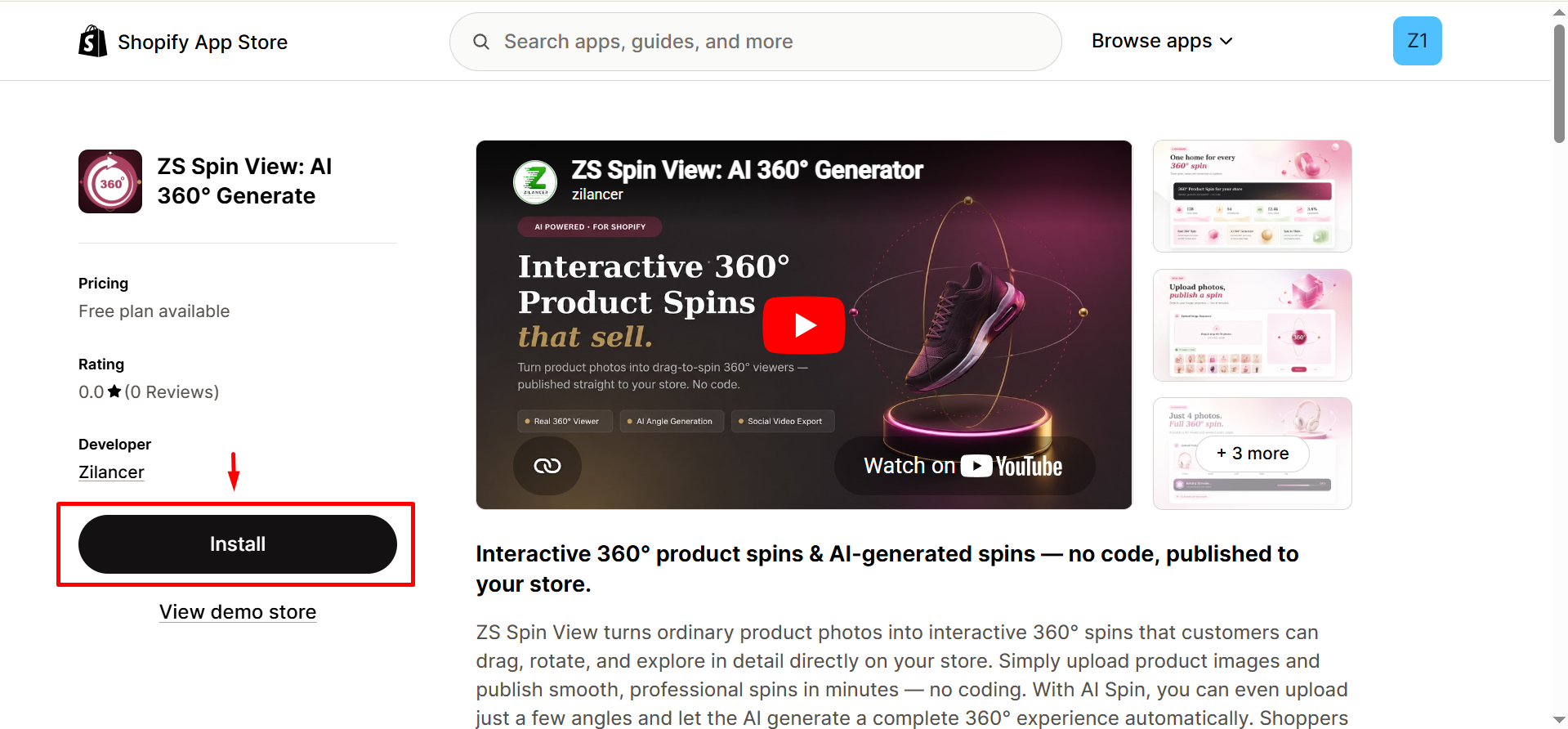
Install from the Shopify App Store
Click Add app and approve the required permissions.
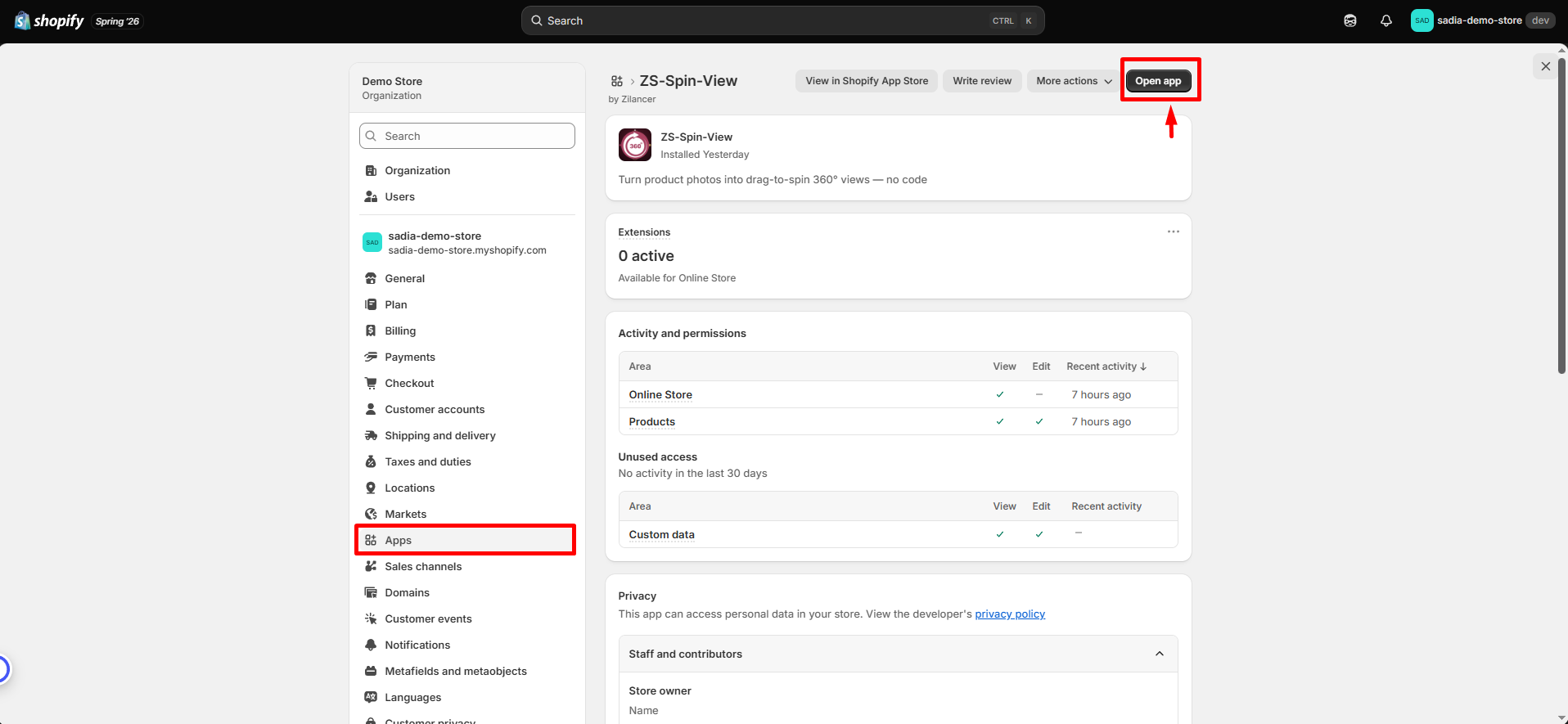
Open the app
Go to Apps → ZS Spin View in your Shopify admin.
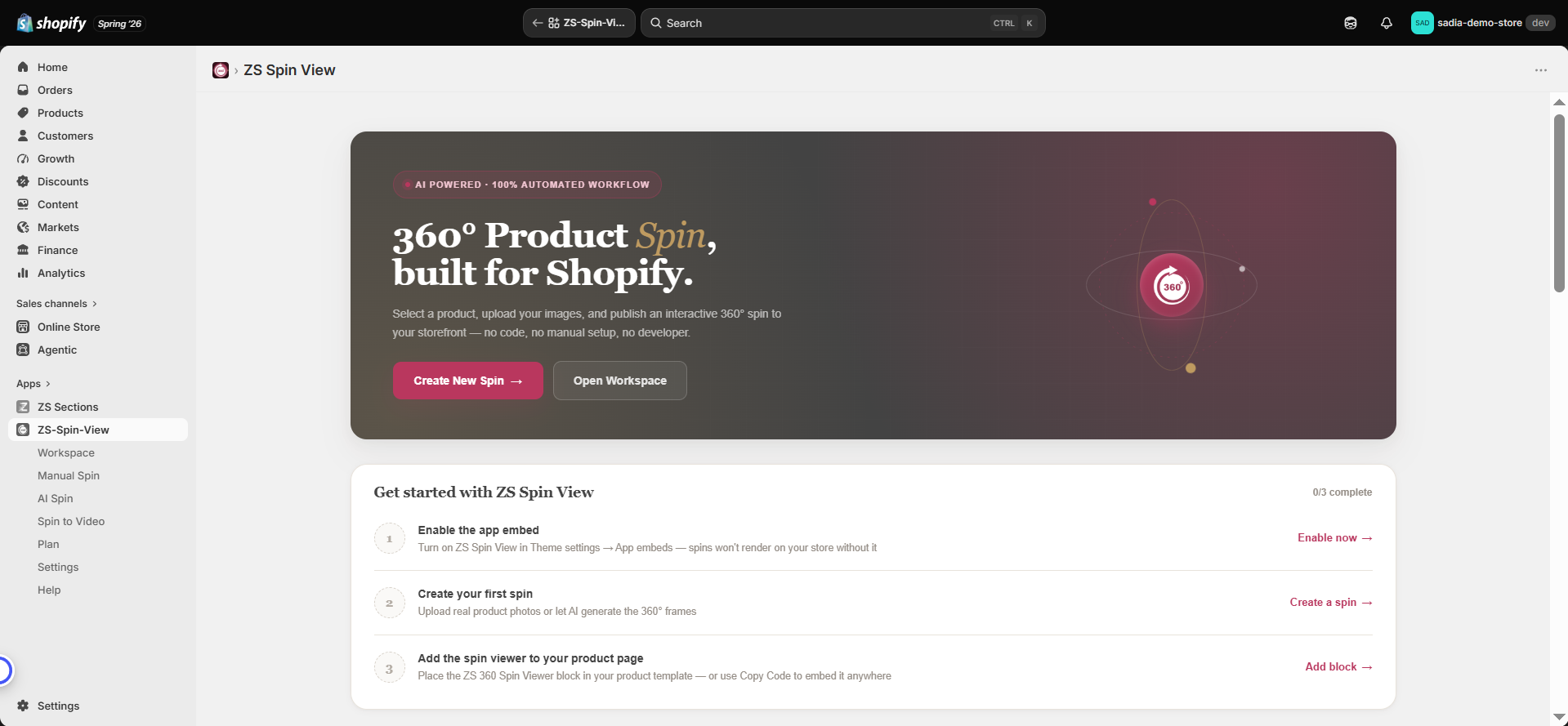
You’re all set
The 360° metafield is automatically configured — no theme editing needed.
Quick start
From photos to a live 360° spin in about 4 minutes.
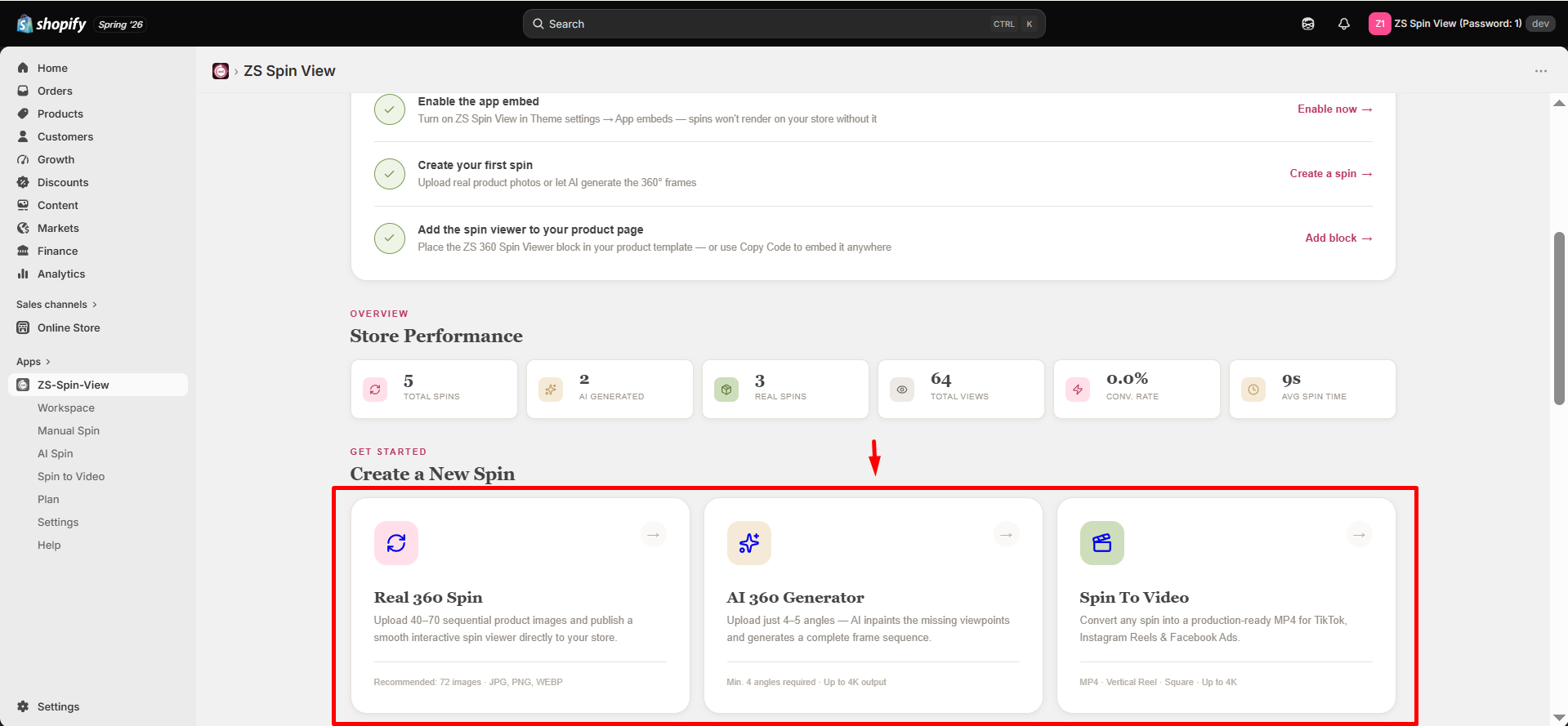
Choose a creation method
Use Real 360° (multiple photos) or AI Generator (few photos) depending on your workflow.
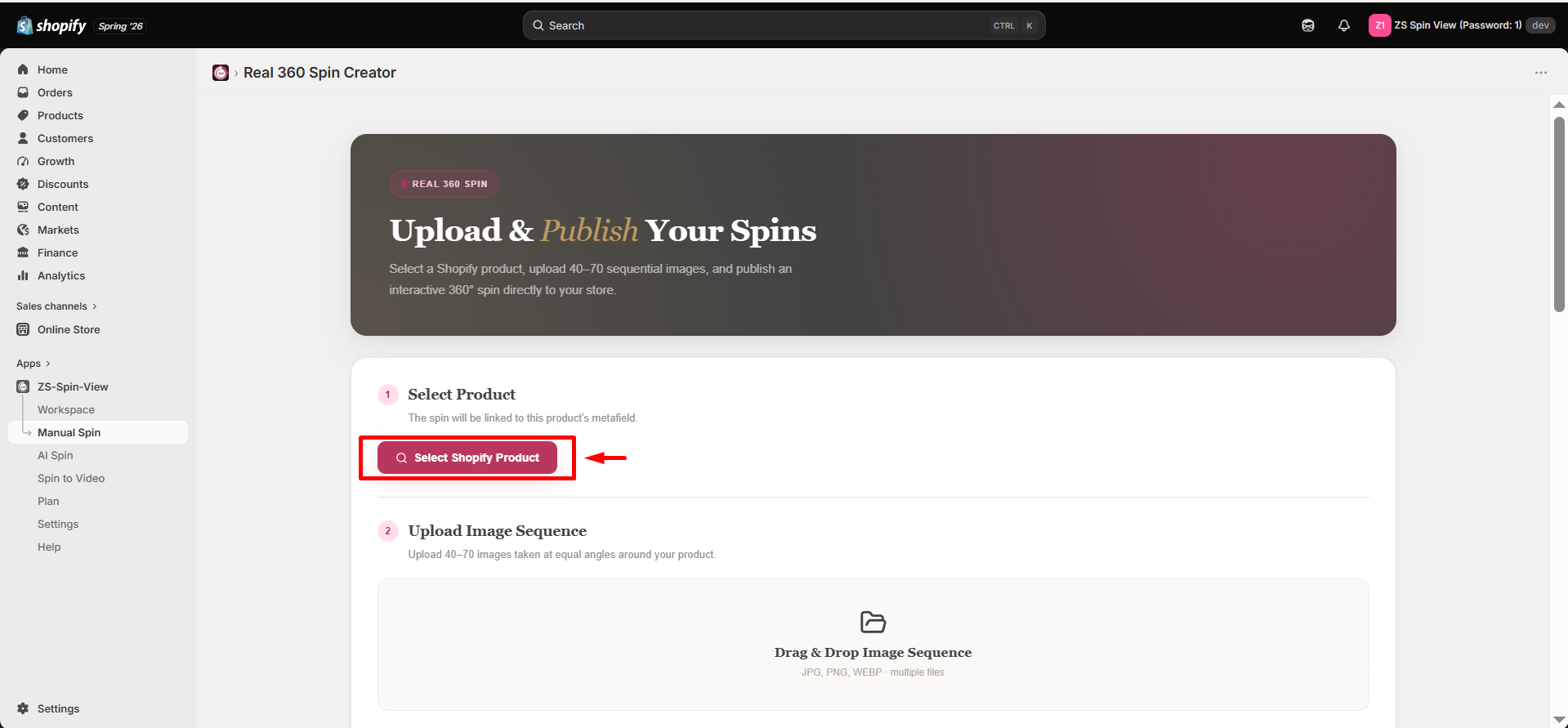
Select a product
Pick the product directly from your catalog inside the app.
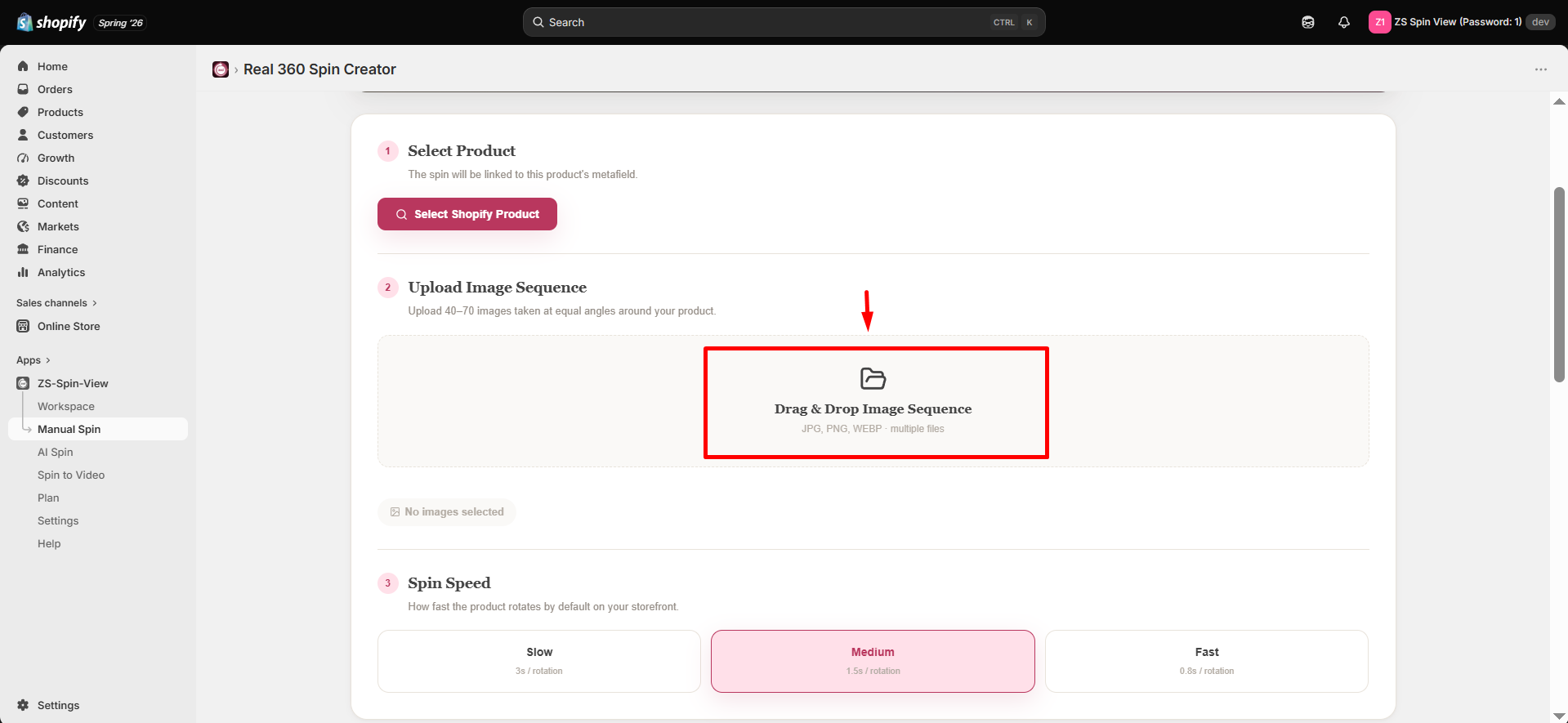
Upload your images
Drag and drop your product photos into the uploader.
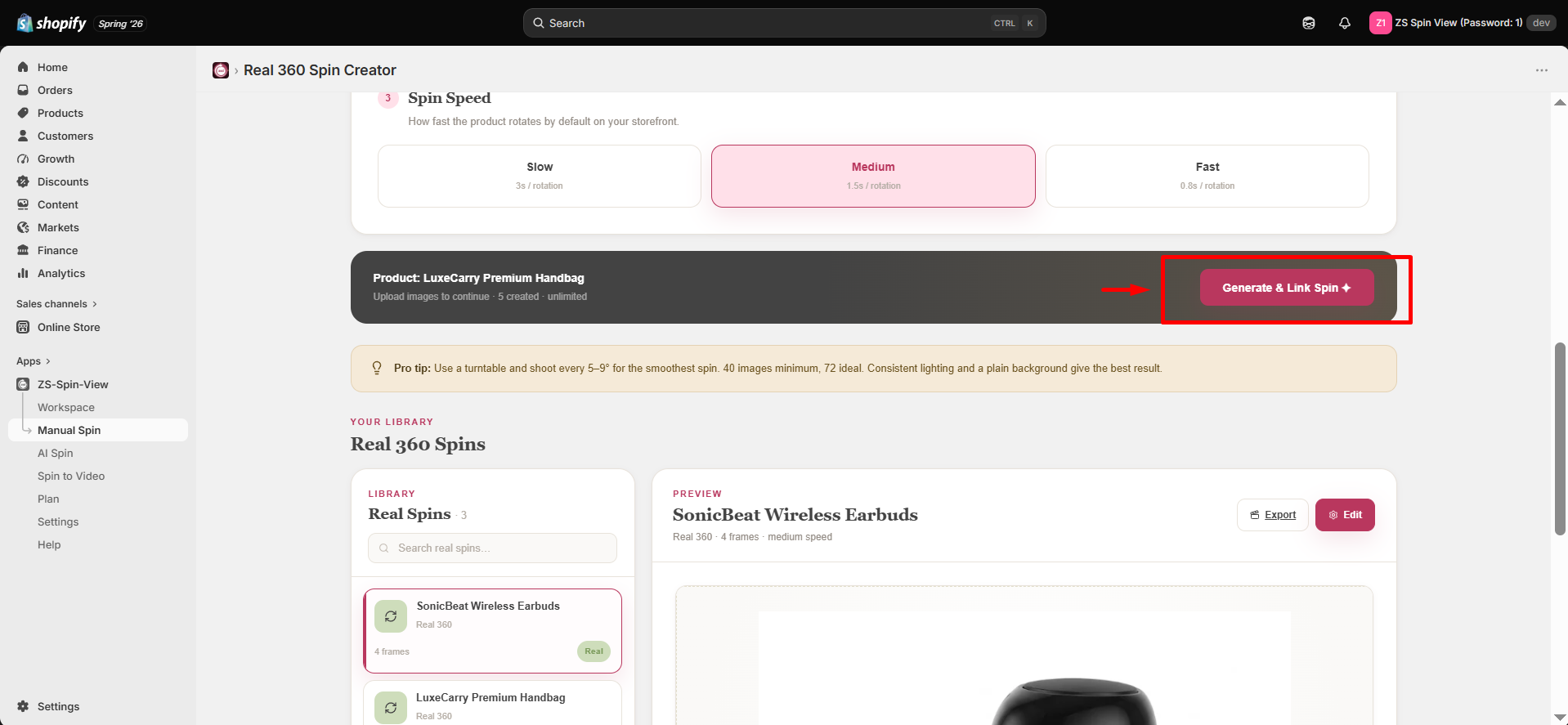
Generate & publish
Your spin is created and automatically synced to the product.
Manual 360° Spin
The highest-quality spin, created using your own product photos for maximum control and precision.
📸 What you need
- 40–72 photos of the product, taken at equal angles around the full 360° rotation.
- Consistent lighting and a plain background for the best results.
- Supported formats: JPG, PNG, WEBP.
🛠 How to create a 360° spin
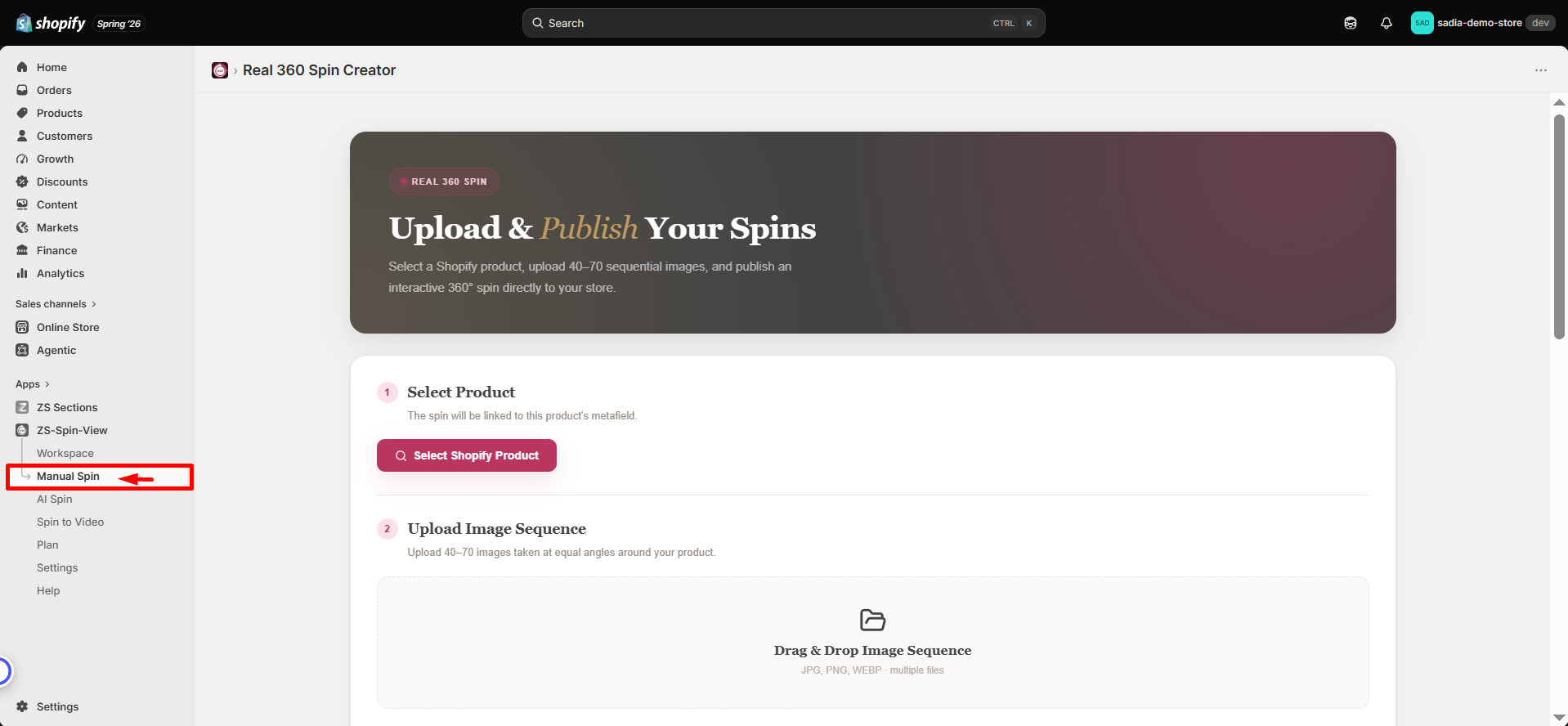
Open “Manual Spin”
Go to the dashboard or sidebar and select Manual Spin.
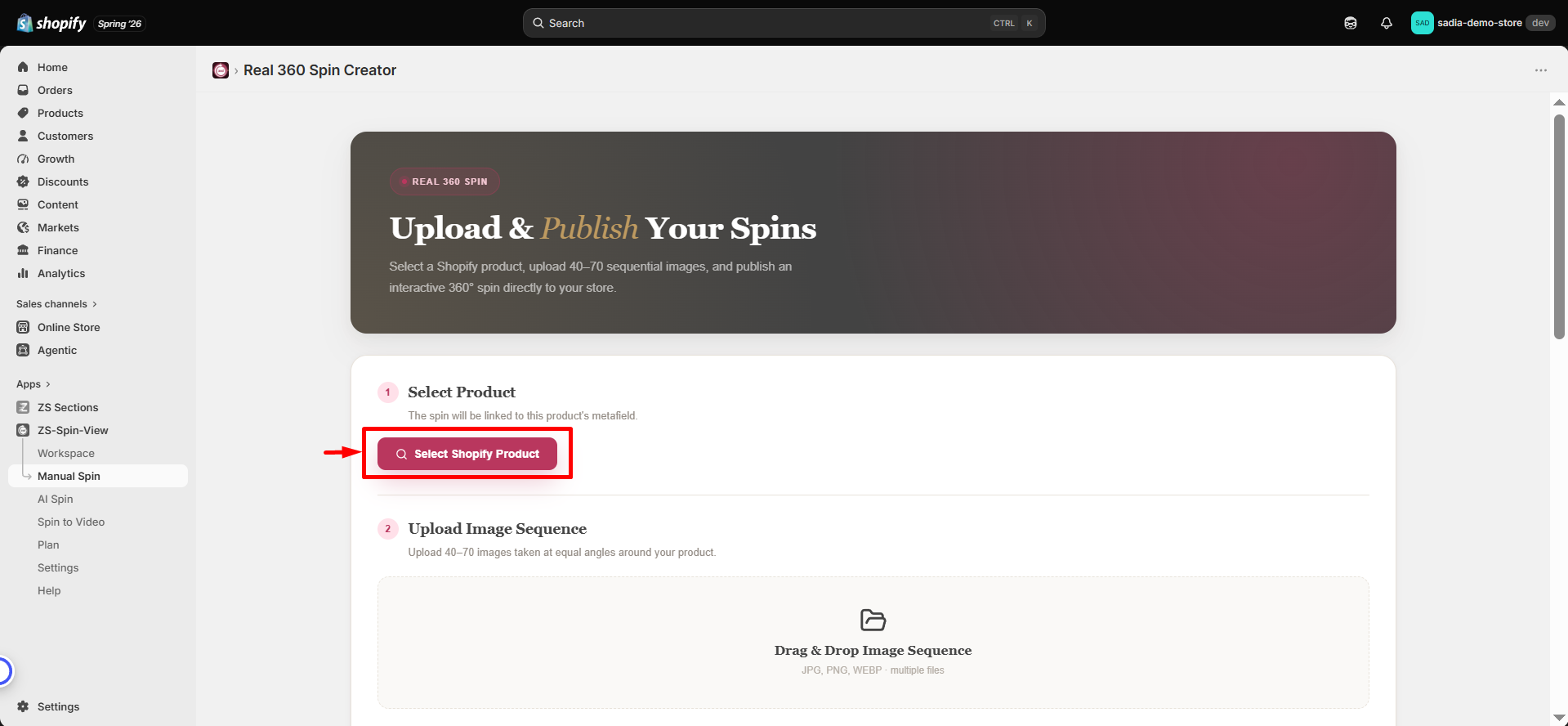
Select your product
Choose the product you want the spin to be linked with.
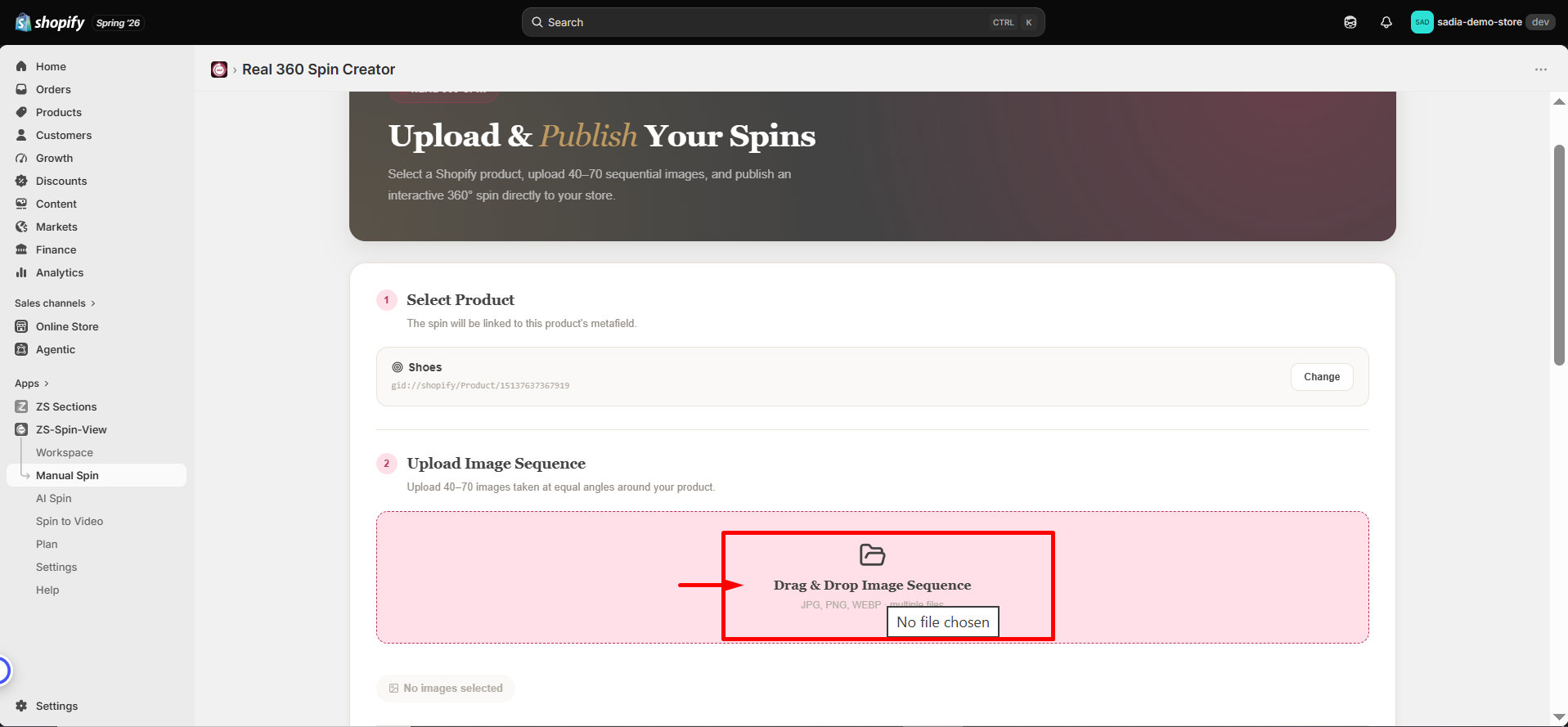
Upload image sequence
Drag and drop your images in the correct order. You’ll see a live count as they upload.
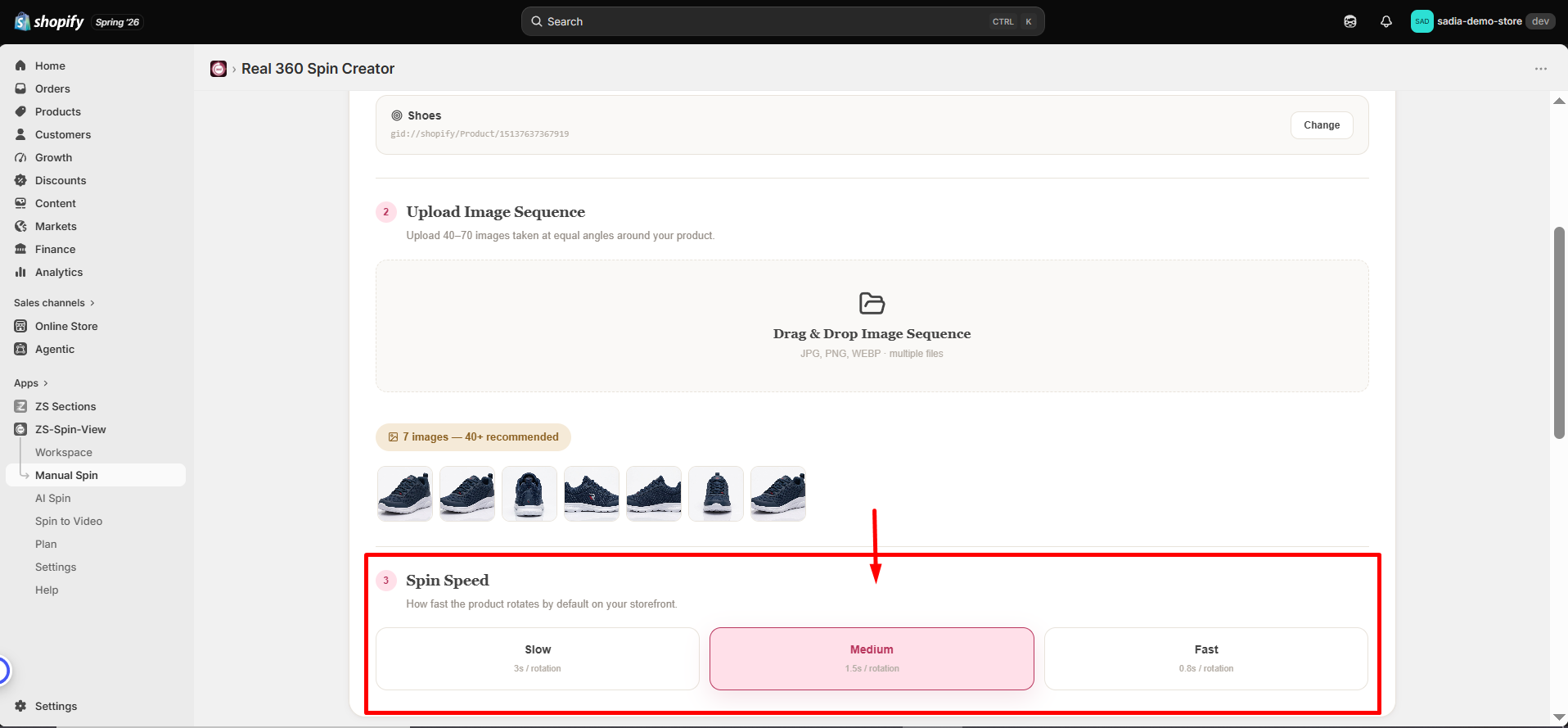
Choose spin speed
Select how fast the spin rotates by default: Slow, Medium, or Fast.
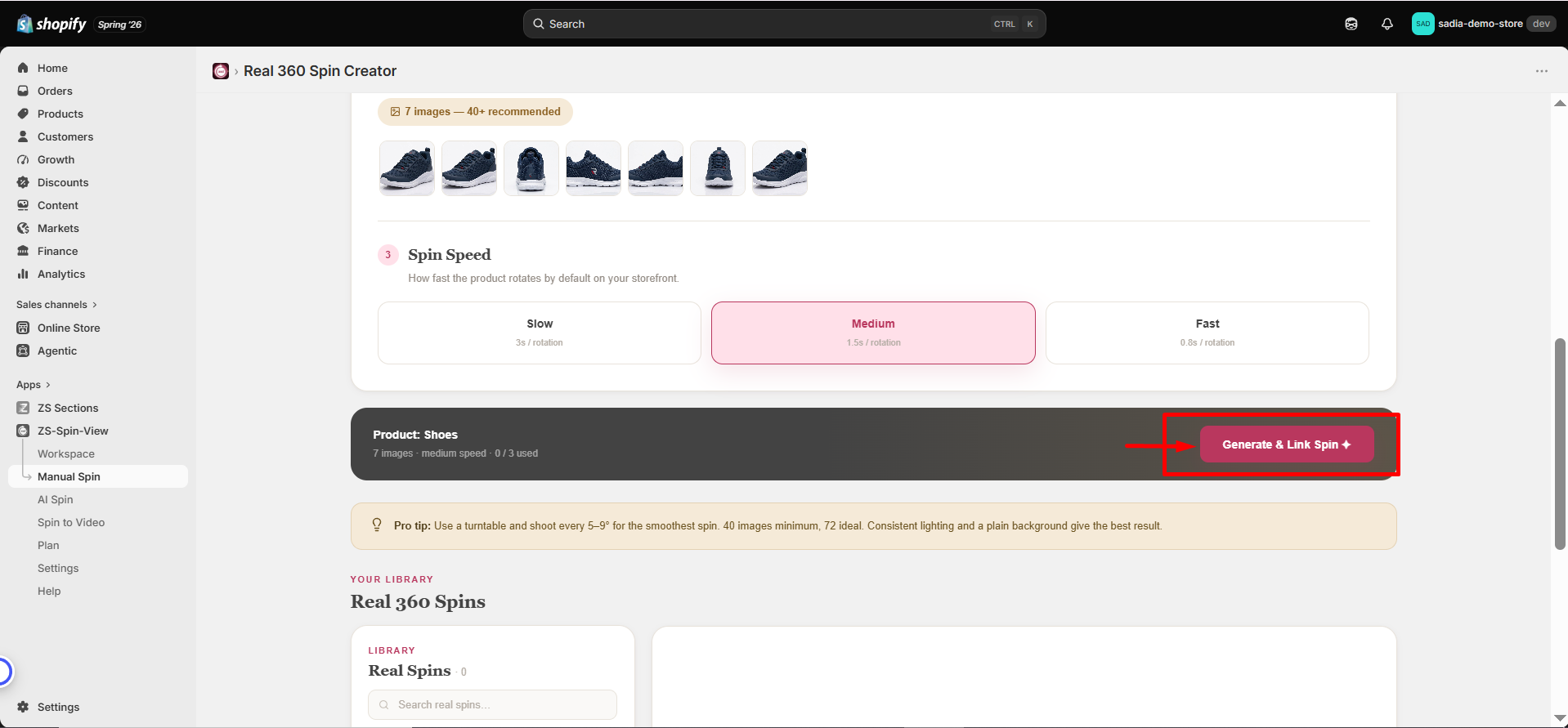
Generate & Link
Click Generate — your spin will be created and automatically published on the product page.
AI 360° Spin
Only have a few photos? Let AI build the full 360° spin for you.
The AI Generator reconstructs a 3D model of your product from a few key angles, then generates a complete 360° frame sequence — including unseen sides like the back and edges.
📸 What you need
- 4 required angles: Front, Back, Left, Right.
- 1 optional angle: Top / 3-quarter view (improves accuracy).
- Plain background and even lighting for best AI results.
🛠 How to create one
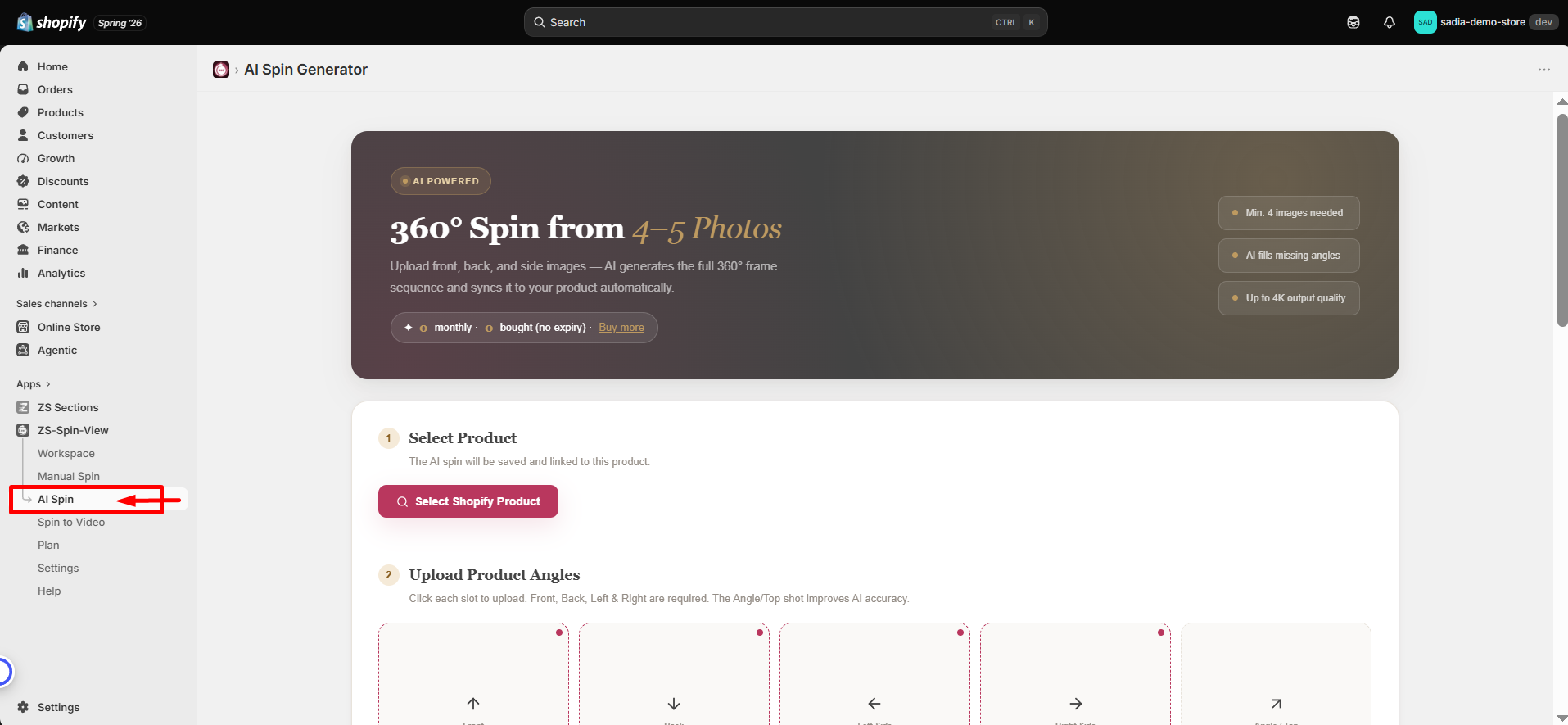
Open “AI Spin”
Go to the dashboard and open the AI Spin. Check your remaining AI spin credits in the banner.
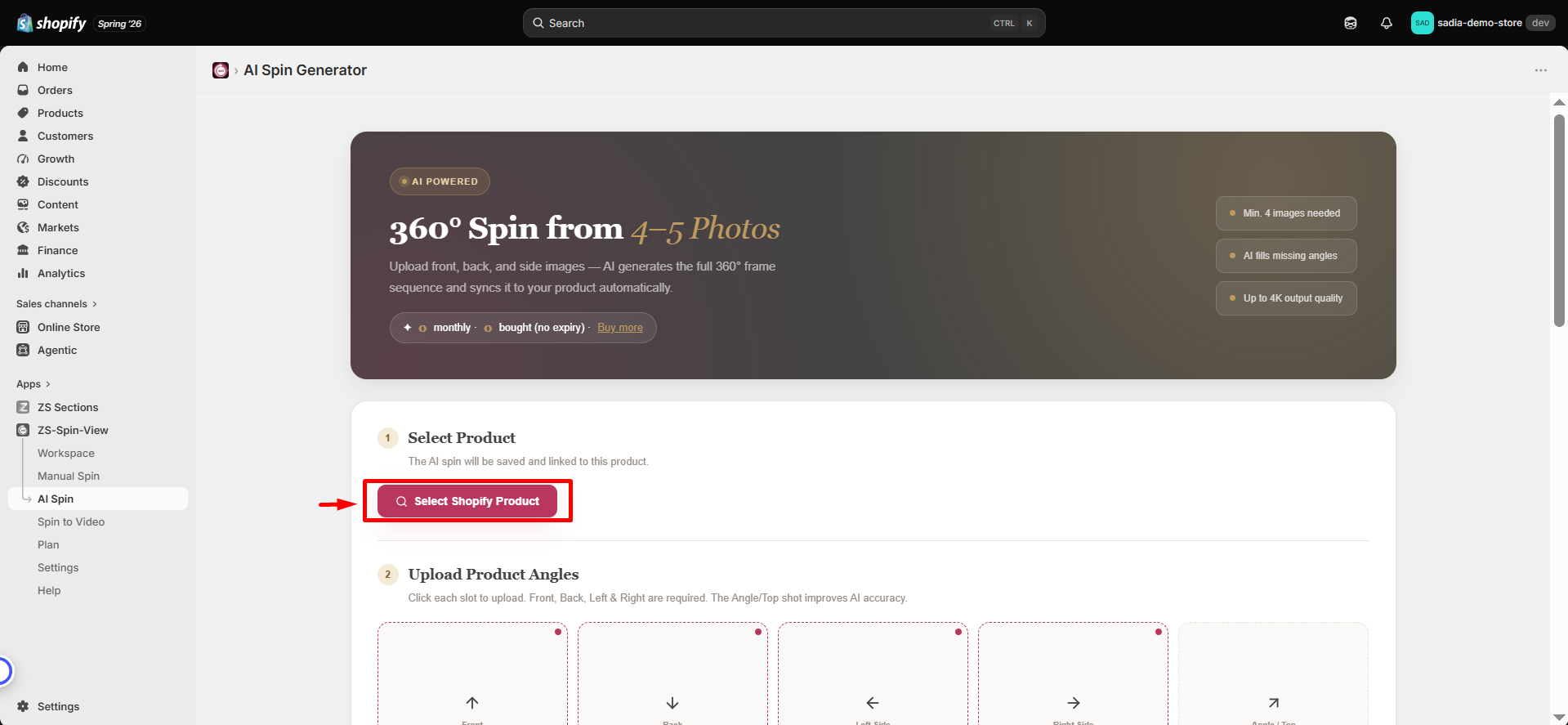
Select your product
The generated spin will be automatically linked to this product.
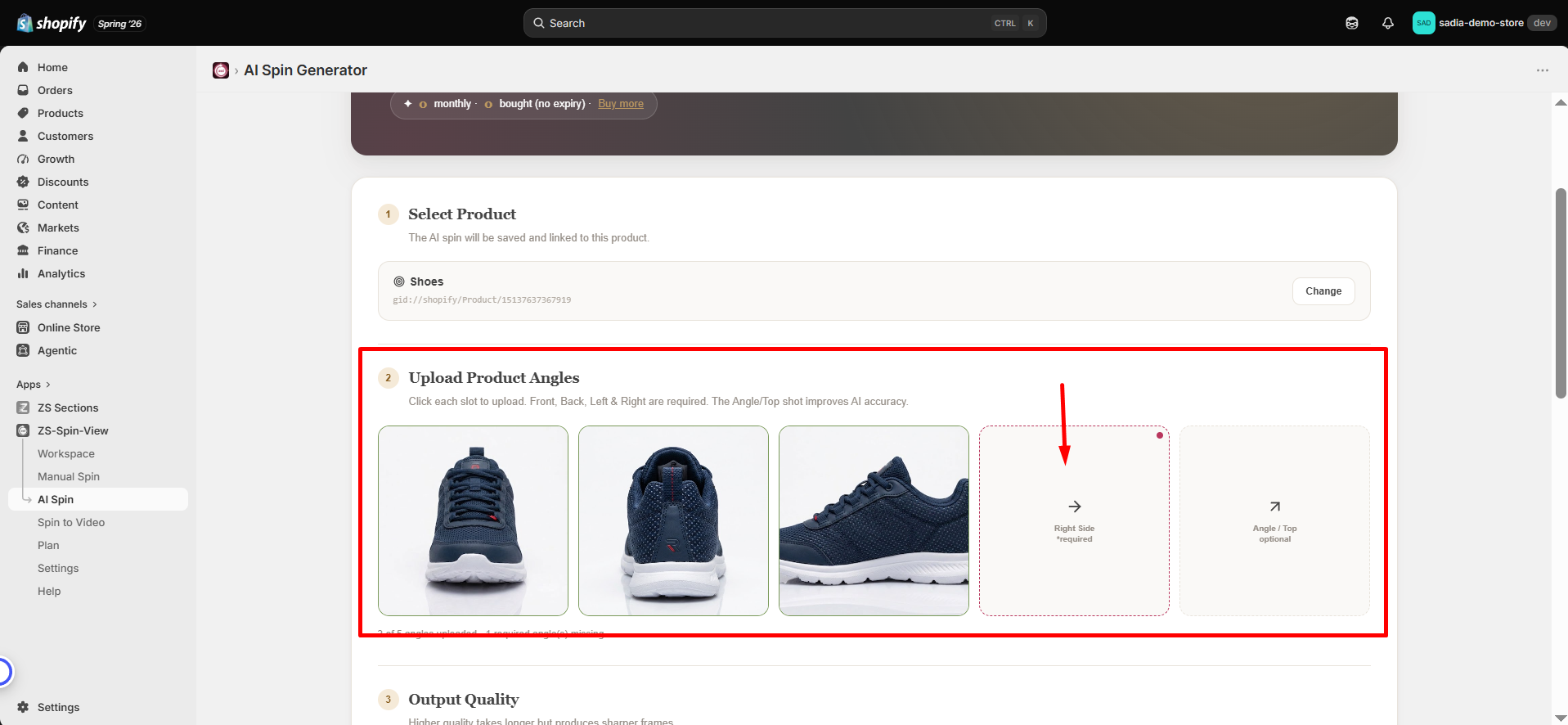
Upload product angles
Click each slot and upload the matching photo (Front, Back, Left, Right, optional top view).
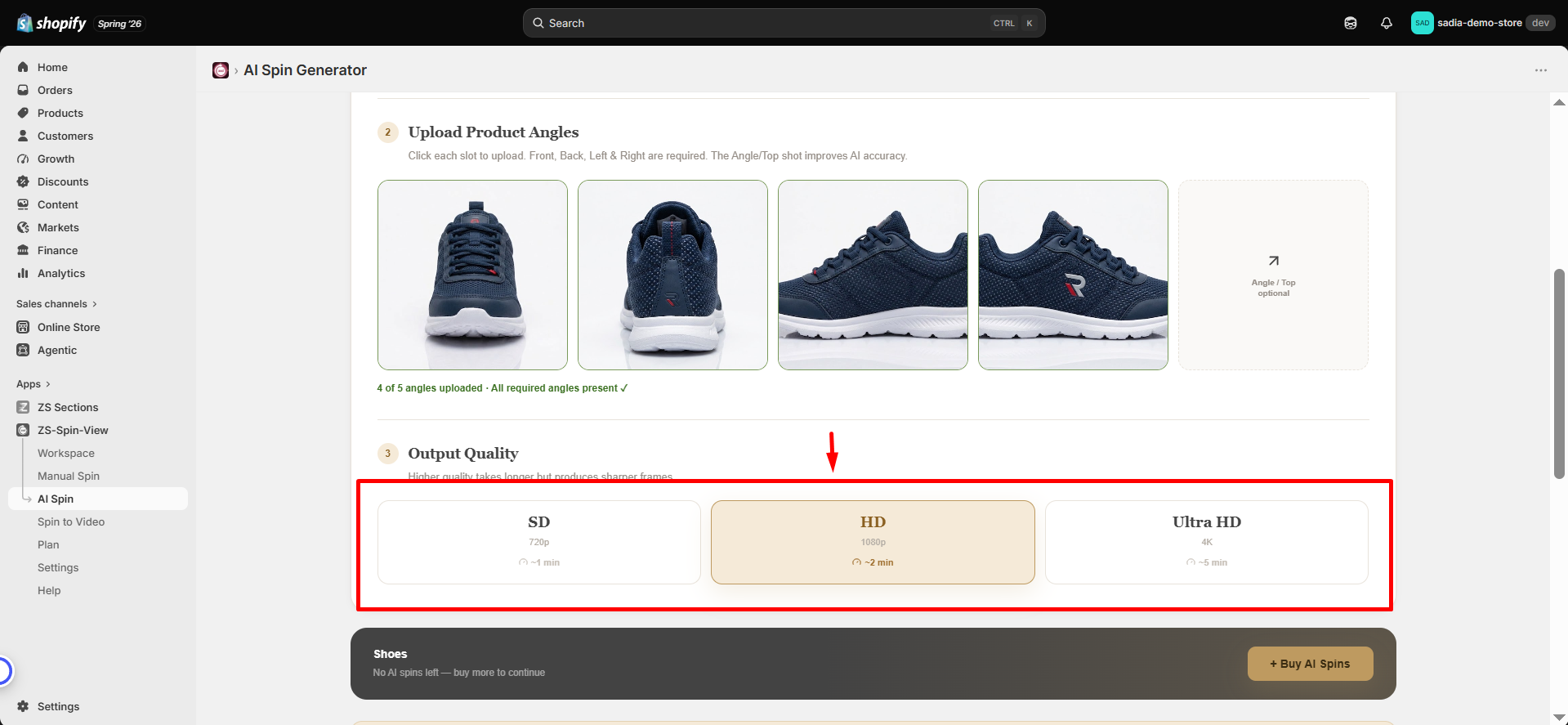
Choose output quality
Select output quality: SD, HD, or Ultra HD (4K). Higher quality may take longer to process.
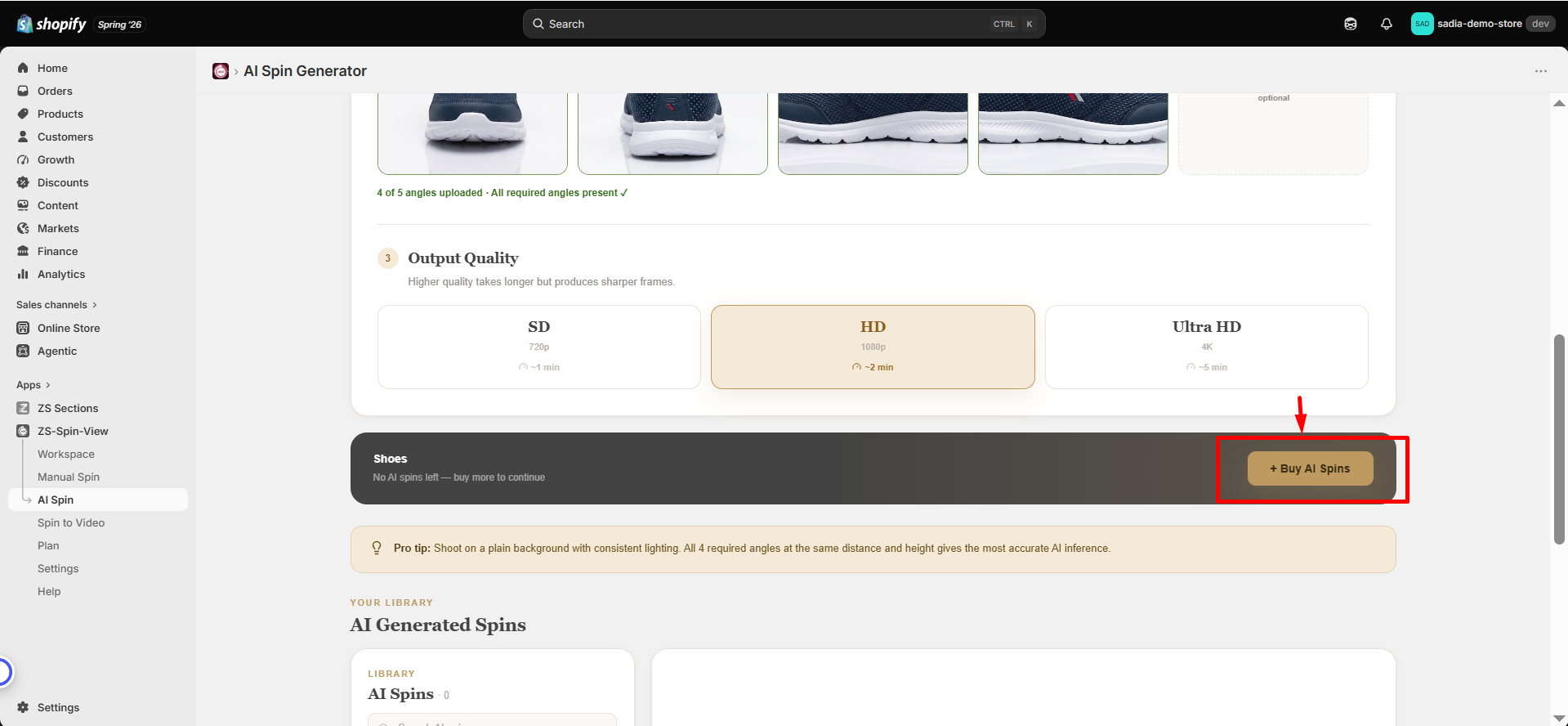
Generate AI Spin
Start generation — a progress bar shows each stage. Typical processing time is 1–5 minutes.
Spin to Video
Turn any 360° spin into a ready-to-post social media video.
🛠 How it works
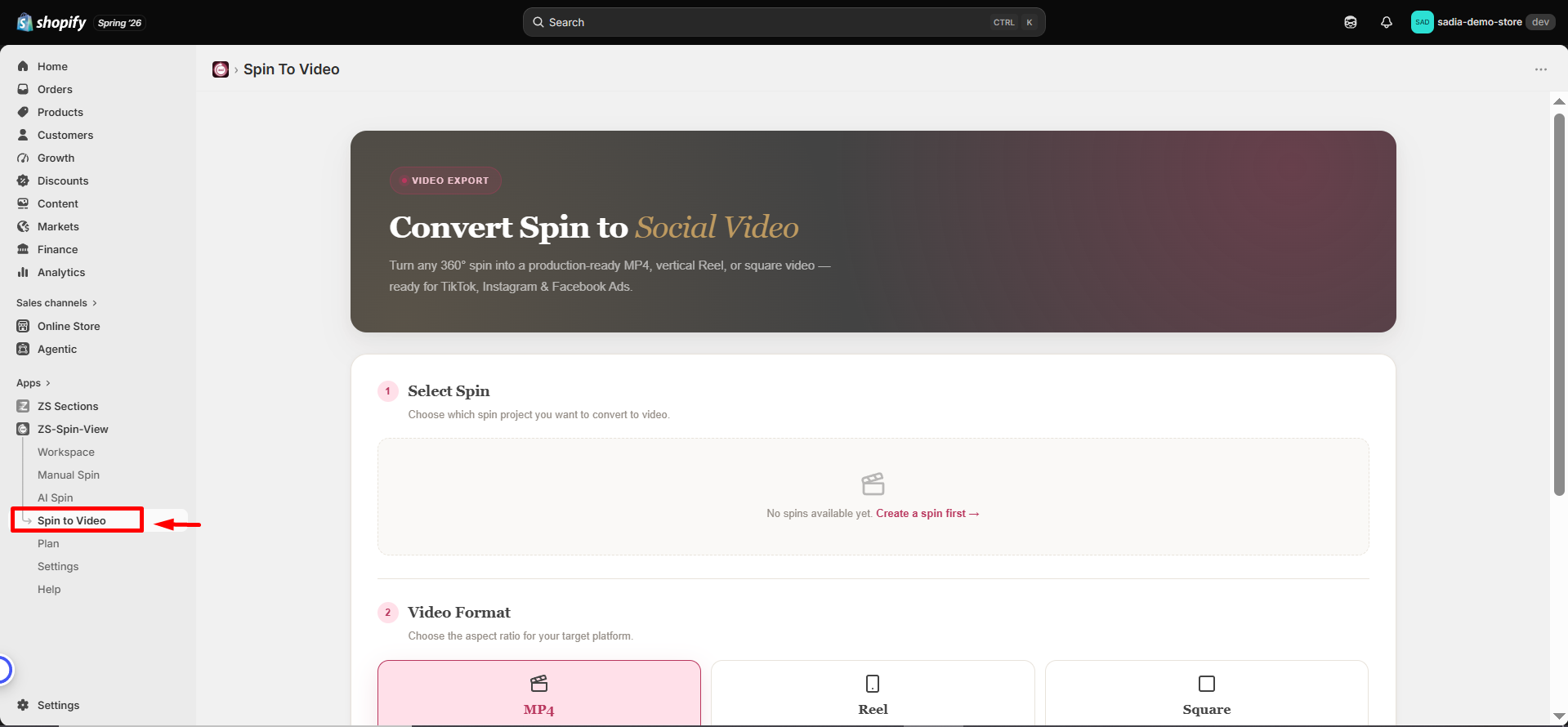
Open “Spin to Video”
Go to the dashboard and open the Spin to Video tool.
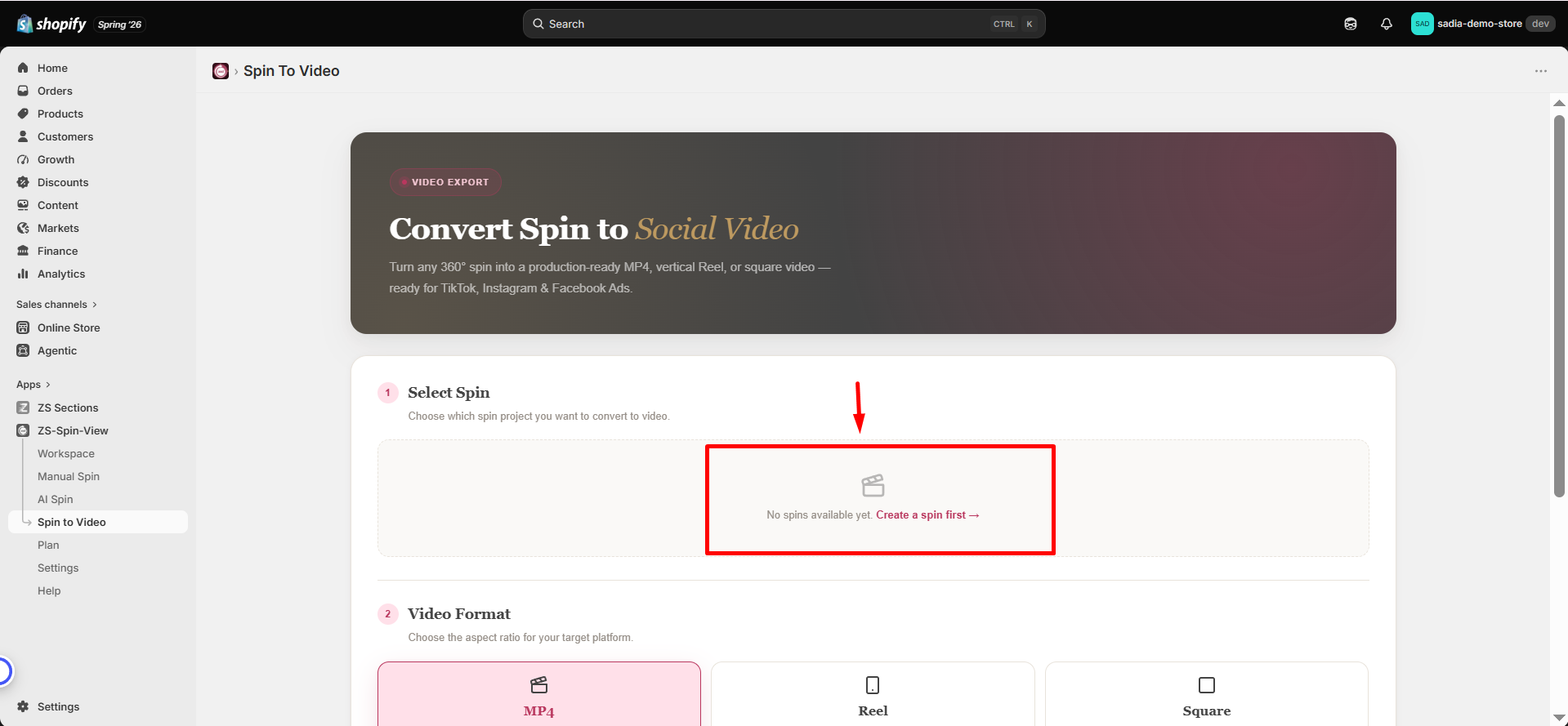
Select a spin
Choose any Manual 360° spin or AI spin from your library.
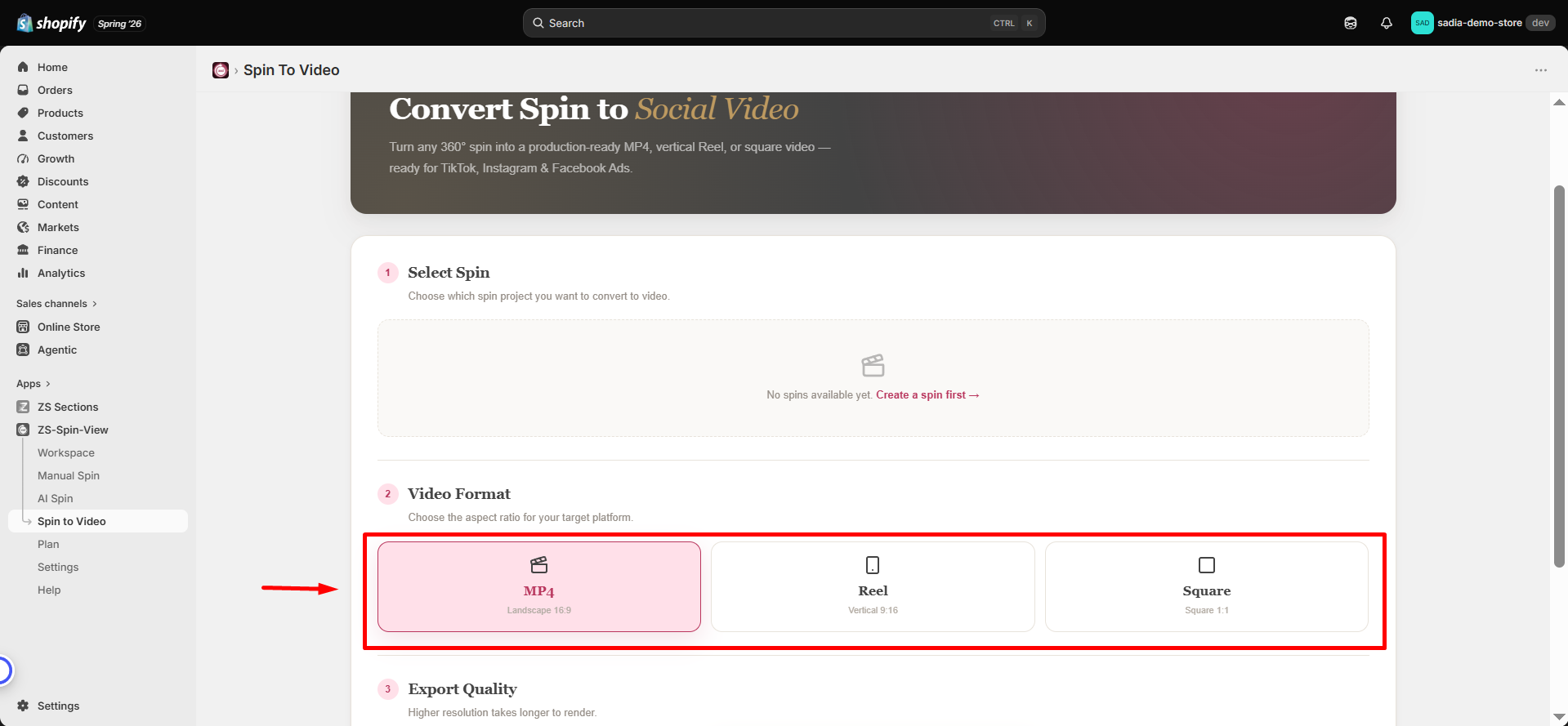
Pick a format
Select the video format based on where you want to publish it.
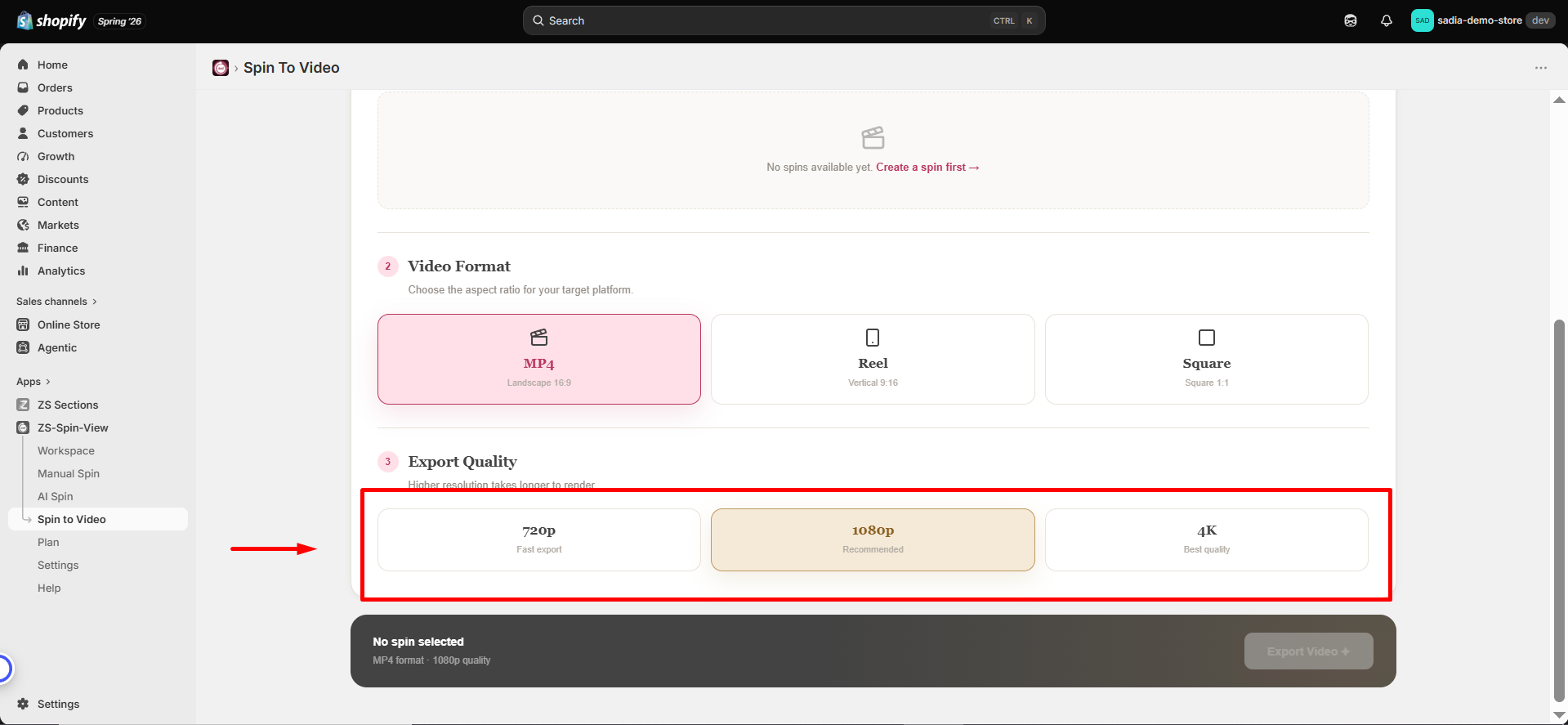
Choose quality & export
Pick output quality: 720p, 1080p, or 4K.
Once processed, your video will be ready to download.
📐 Supported formats
| Format | Best for |
|---|---|
| MP4 (16:9) | Website, YouTube, product pages |
| Reel (9:16) | Instagram Reels, TikTok, Stories |
| Square (1:1) | Instagram & Facebook feed ads |
Workspace & preview
Review every spin exactly as your customers will experience it.
🖥 Workspace Layout
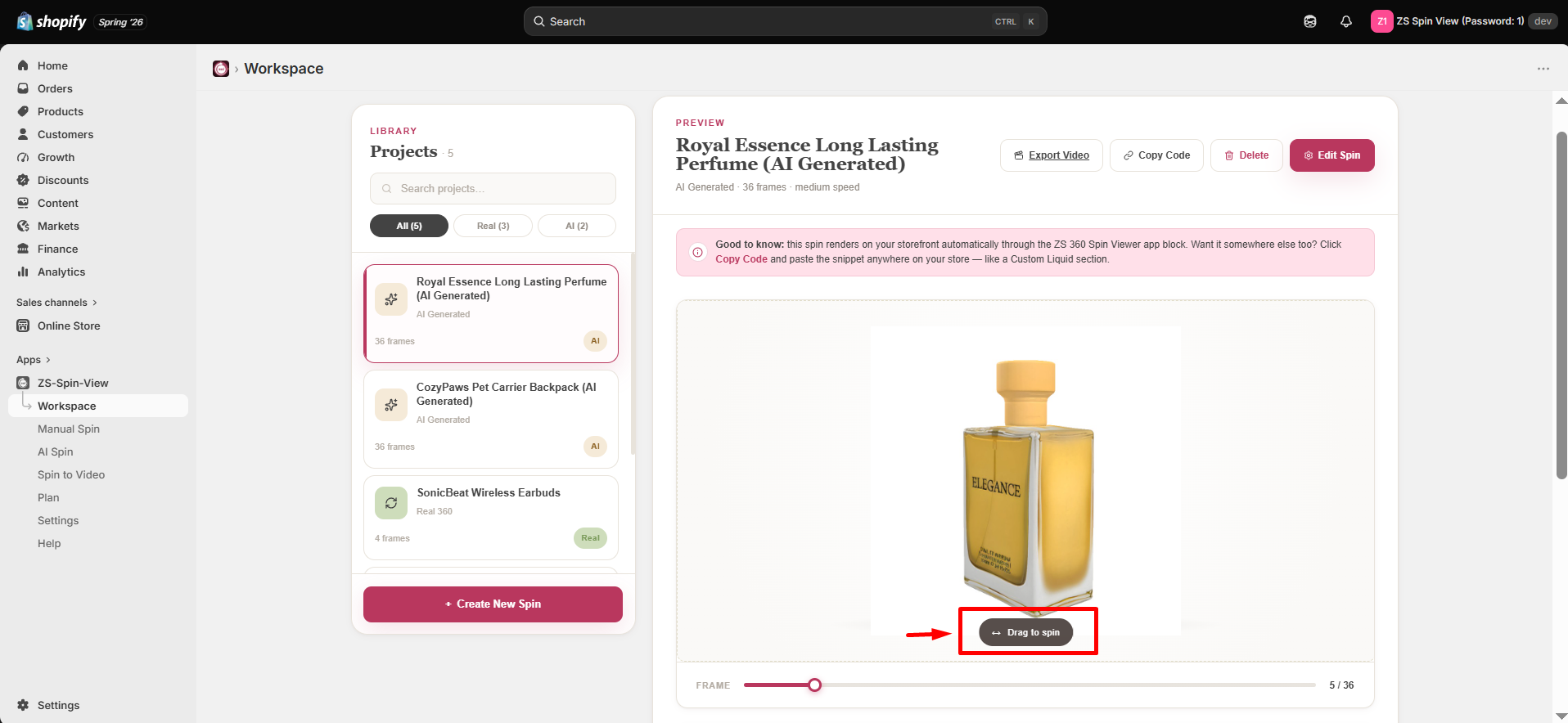
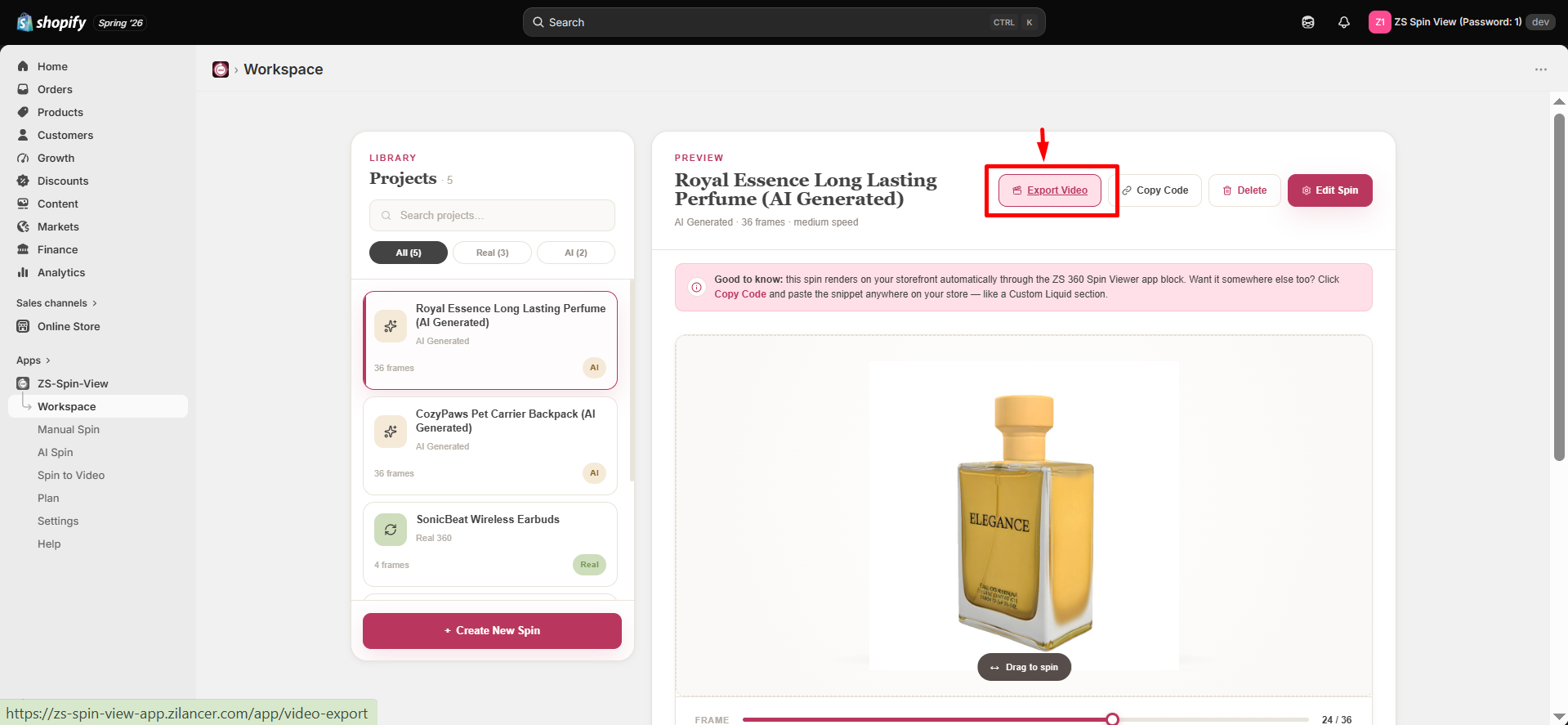
The Workspace shows all your spins in a list on the left side. Select any spin to preview it instantly on the right side.
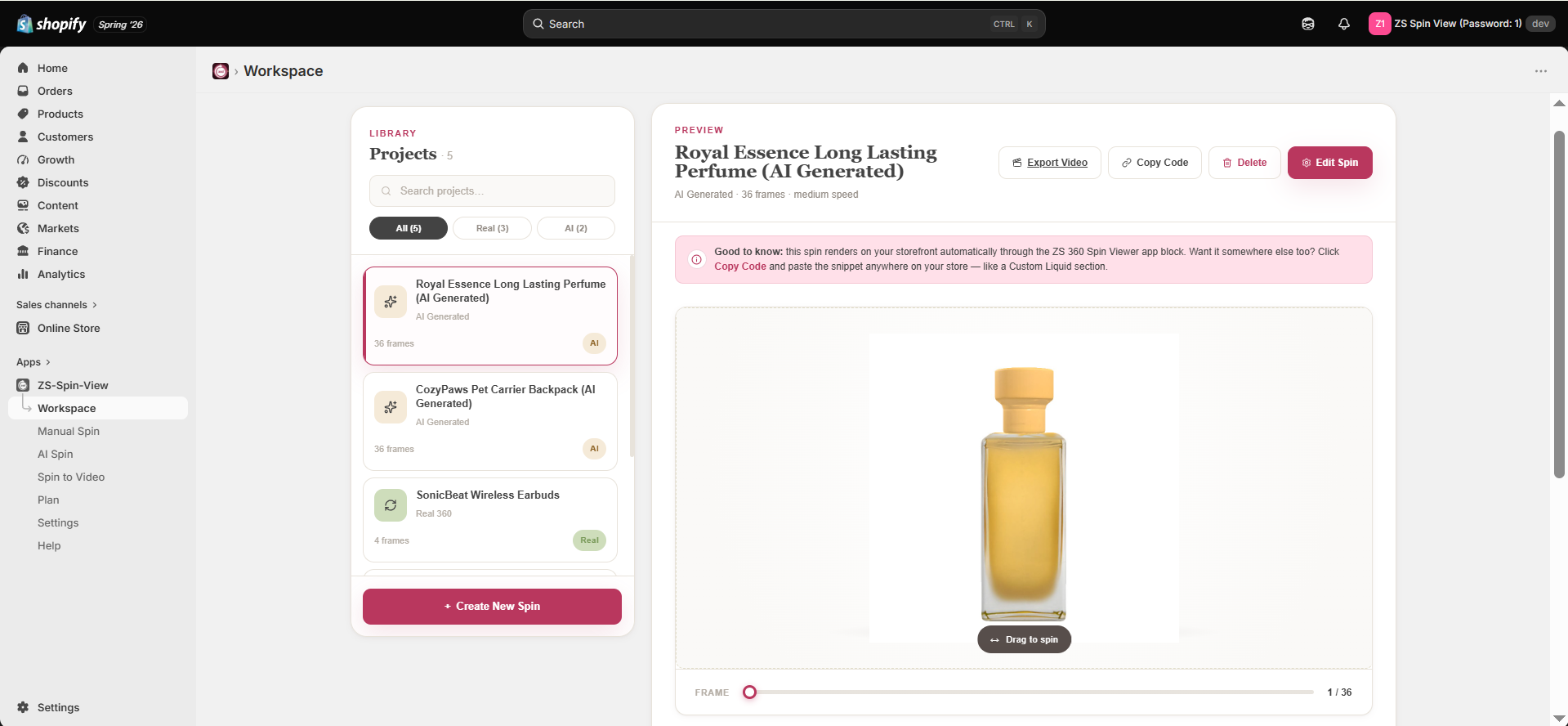
👀 Preview Features
Once a spin is selected, you can interact with it in multiple ways:
- 📋 Copy embed code — Copy the generated embed code to your clipboard with a single click, ready to use whenever you need it.
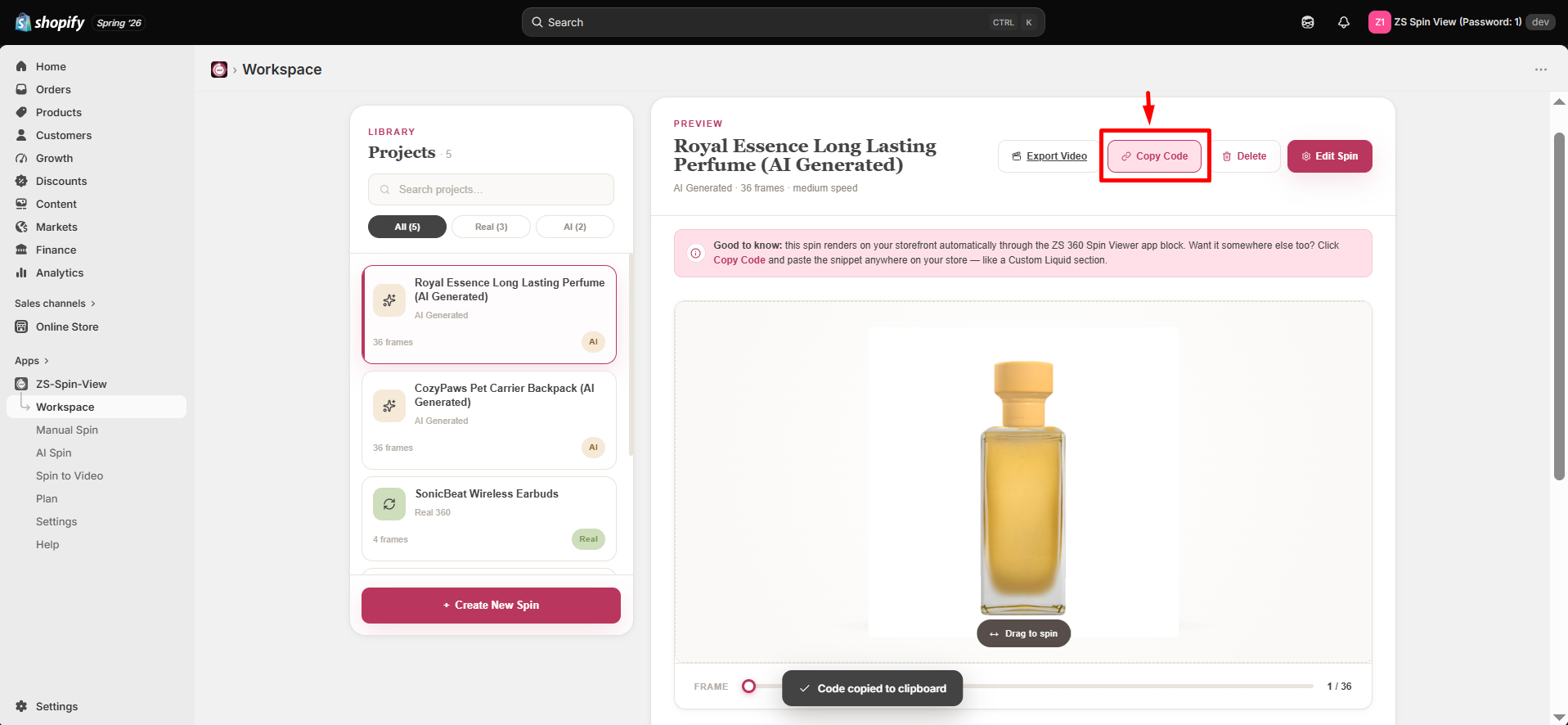
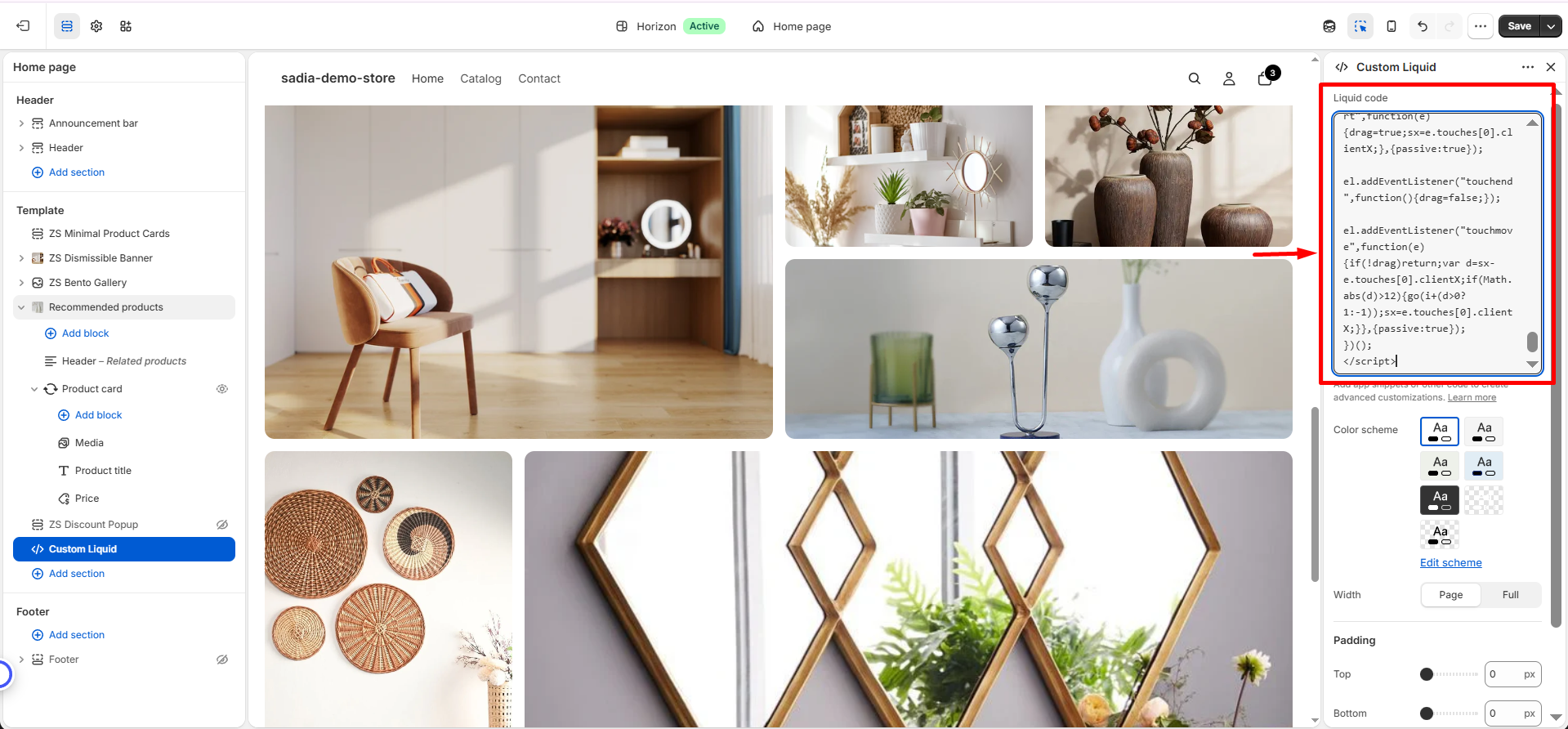
Paste the copied embed code into your website or project to quickly embed and display the 360° spin.
- 🖱 Drag to spin —Click and drag (or swipe on touch devices) to rotate the product smoothly and view it from any angle.
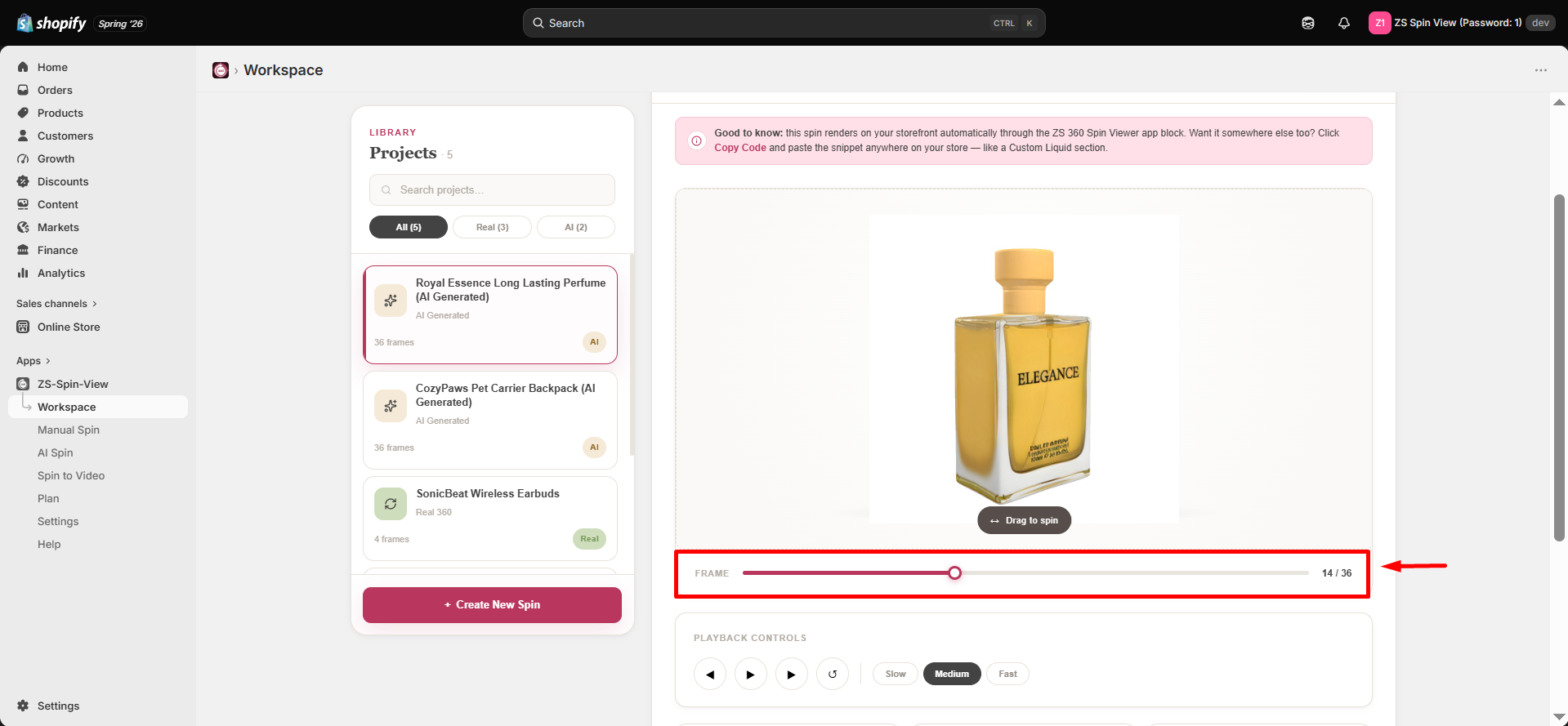
- 🎚 Scrub frames — Use the frame slider to move through individual frames and inspect specific viewing angles with precision.
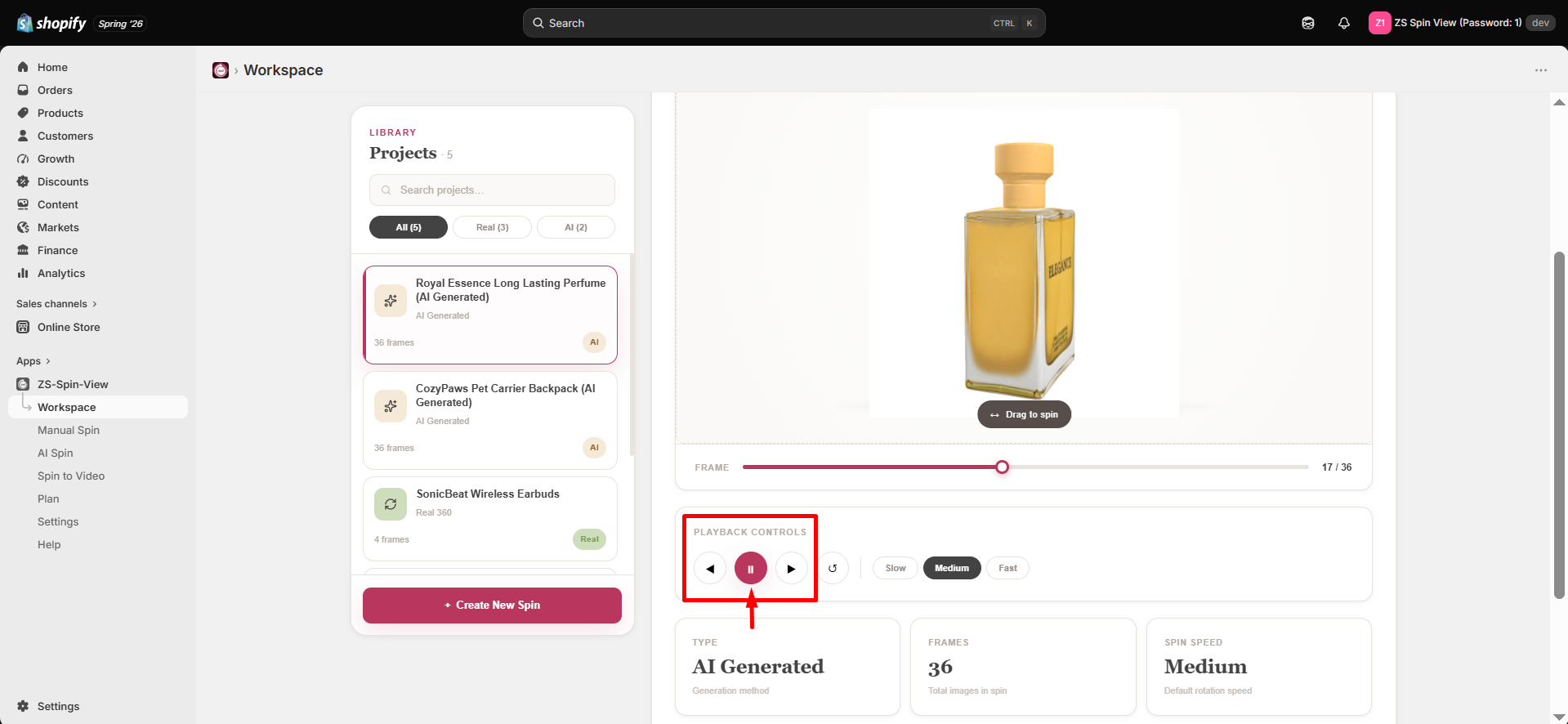
- ▶ Auto-play — Automatically rotate the product in a continuous loop. You can play, pause, and adjust the rotation speed to suit your preference.
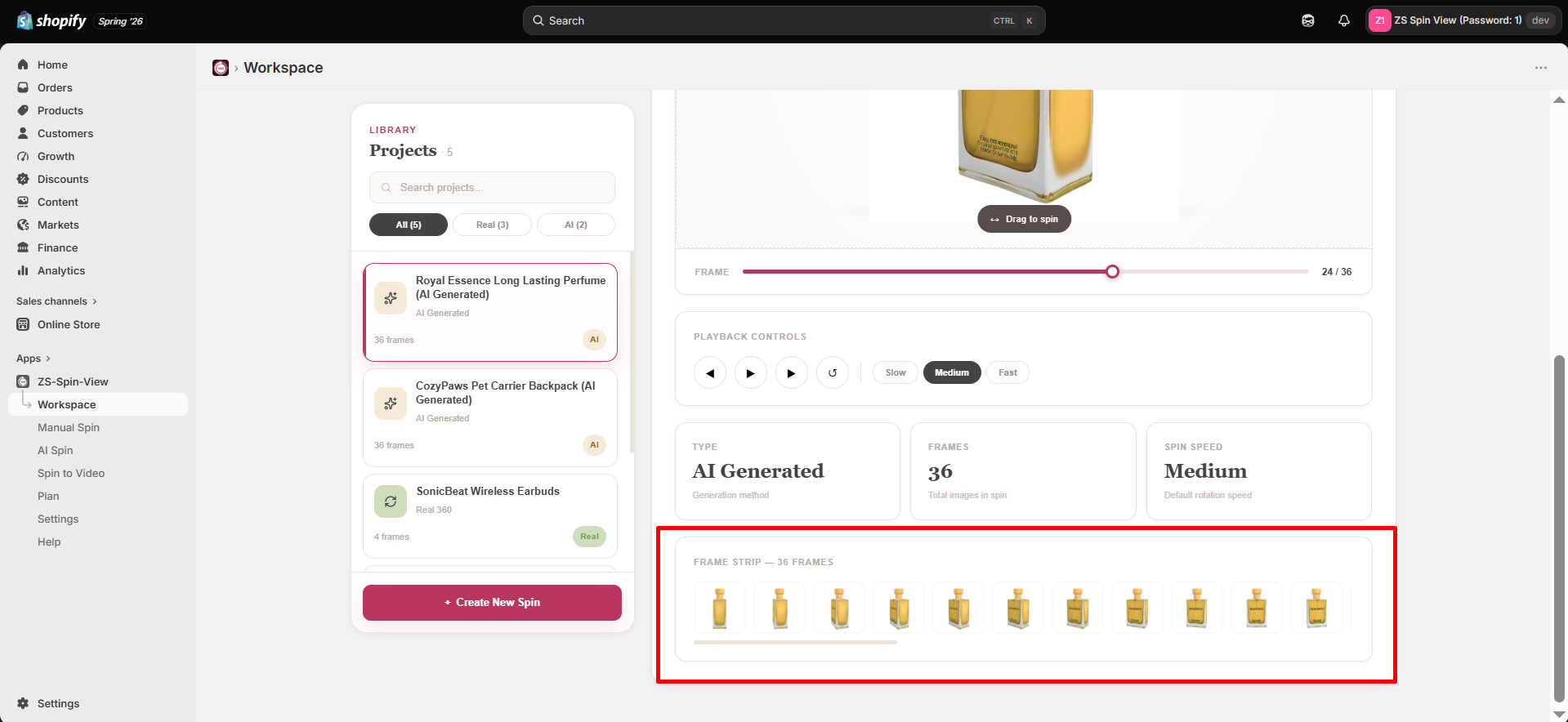
- 🖼 Frame strip — Click any thumbnail to jump directly to that frame.
🎬 Export Option
From the preview screen, you can instantly jump to Export Video for the selected spin.
Plans & AI spins
Choose the plan that fits your store. You can cancel anytime.
📊 Pricing Plans
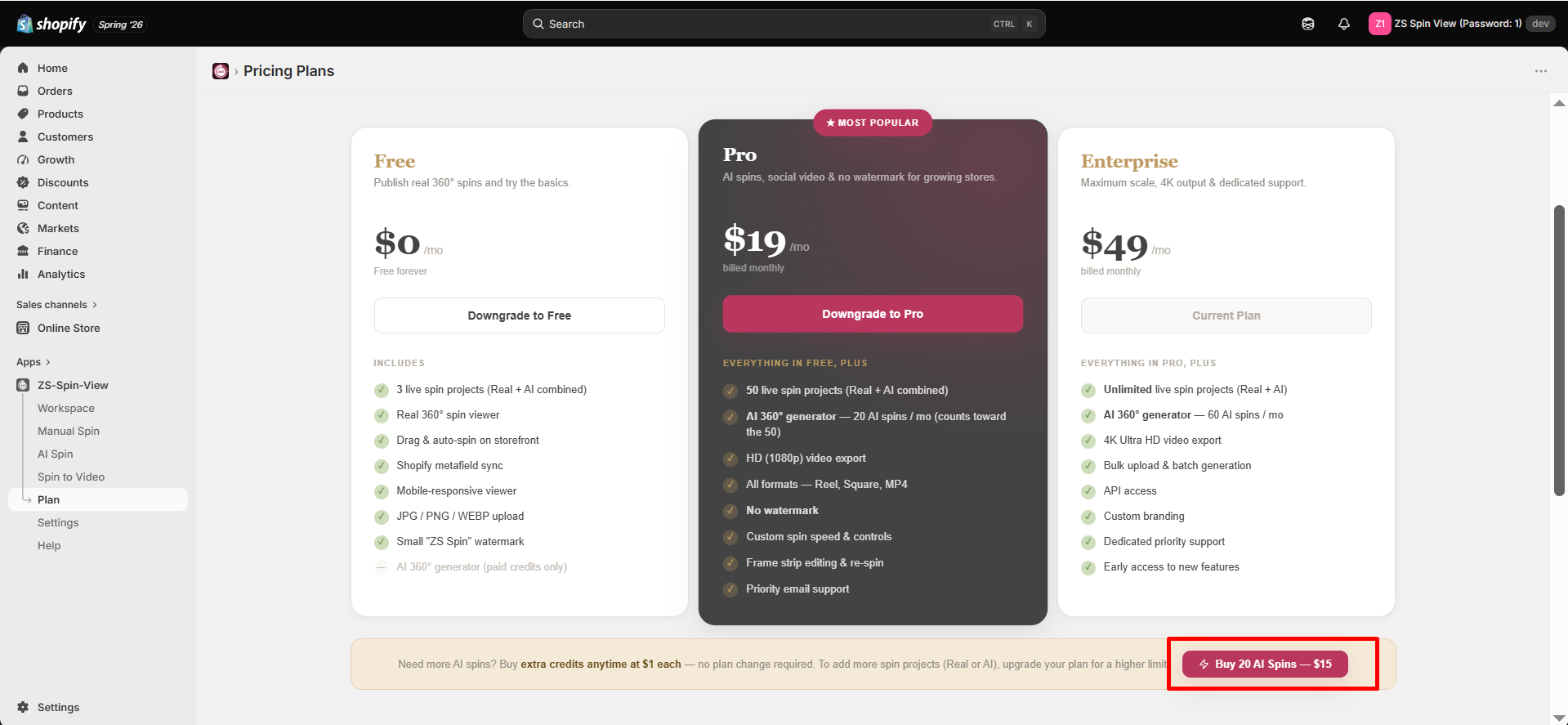
| Plan | Price | Spin projects | AI spins / month |
|---|---|---|---|
| Free | $0 | 3 | — |
| Pro | $19/mo | 50 | 20 |
| Enterprise | $49/mo | Unlimited | 60 |
🤖 How AI Spins Work
- One AI spin = one full 360° spin generated by AI.
- AI spin credits reset every billing cycle.
- Manual 360° spins are always free and do not use AI credits.
⚠️ Out of AI Spins?
You still have flexible options:
- 💳 Buy extra AI spins anytime — Free or paid users can purchase additional AI spins without changing their plan.
- 💰 20 AI Spins — $15
- 📈 Upgrade your plan — Get a higher monthly allowance if you need to create more spin projects regularly (Real or AI).
- ℹ️ Note: Free users can purchase AI spins, but they can keep up to 3 spin projects (live at a time) within the free plan limits.
Settings
Set defaults and control how spins behave across your store.
🎛 Default Controls
- Default spin speed — Applied to all new spins. Choose: Slow, Medium, or Fast.
- Default output quality — Sets default export quality for spins and videos: SD, HD, or 4K.
🧭 Viewer Behavior
- Autoplay on page load — Automatically starts spinning when customers open a product page.
- Mobile drag-to-spin — Enables touch-based rotation on mobile devices.
🏷 Branding
- Show ZS Spin badge — Displays a small watermark badge on the spin viewer.(Removable on paid plans).
FAQ
Troubleshooting
Quick fixes for the most common issues.
❌ My spin isn’t showing on the product page
- Confirm the spin is marked Live in the Workspace after generation.
- Make sure you selected the correct product during setup.
- Some themes require adding the spin block manually once
→ Check your product template in the theme editor.
→ If needed, contact support and we’ll help you set it up.
🤖 My AI spin failed or looks incorrect
- Re-shoot using a plain background and even lighting.
- Ensure all 4 required angles (Front, Back, Left, Right) are clear and fully visible.
- If a generation fails, no AI spin credit is used — simply try again.
🔄 The spin looks choppy
- For Manual 360°, increase photo count to 60–72 images for smoother rotation.
- Lower the default spin speed in Settings for a more natural feel.
Contact support
Still stuck? We’re here to help you.
📧 Email Support
contact@zilancer.com
💬 Live Chat
Available directly inside the app.
Pro & Enterprise users get priority support.
📌 Tip for faster help
Include the following when contacting support:
- Your store URL
- The spin name or ID
- A short description of the issue
This helps us locate your case quickly and resolve it faster.