 ZS SPIN VIEW
Add a 360° spin to a PageFly or GemPages page
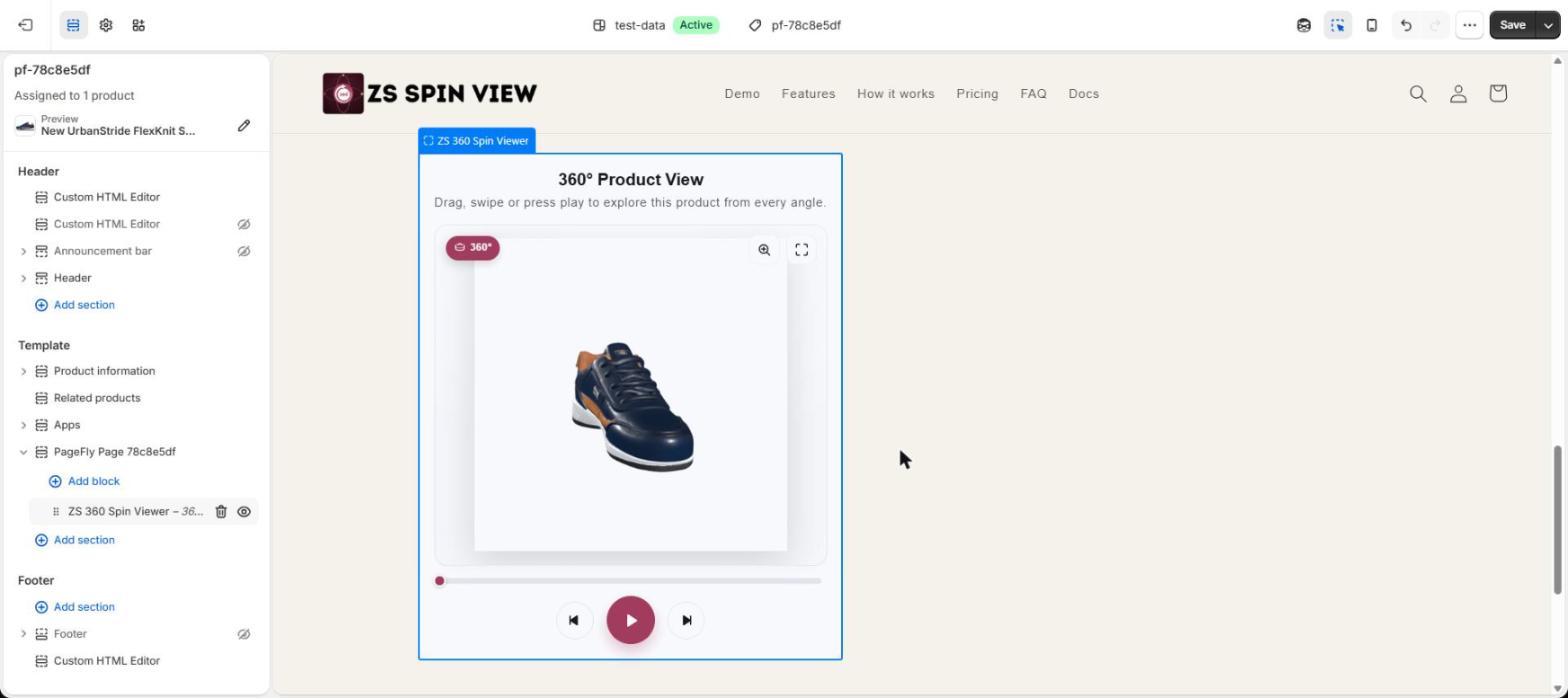
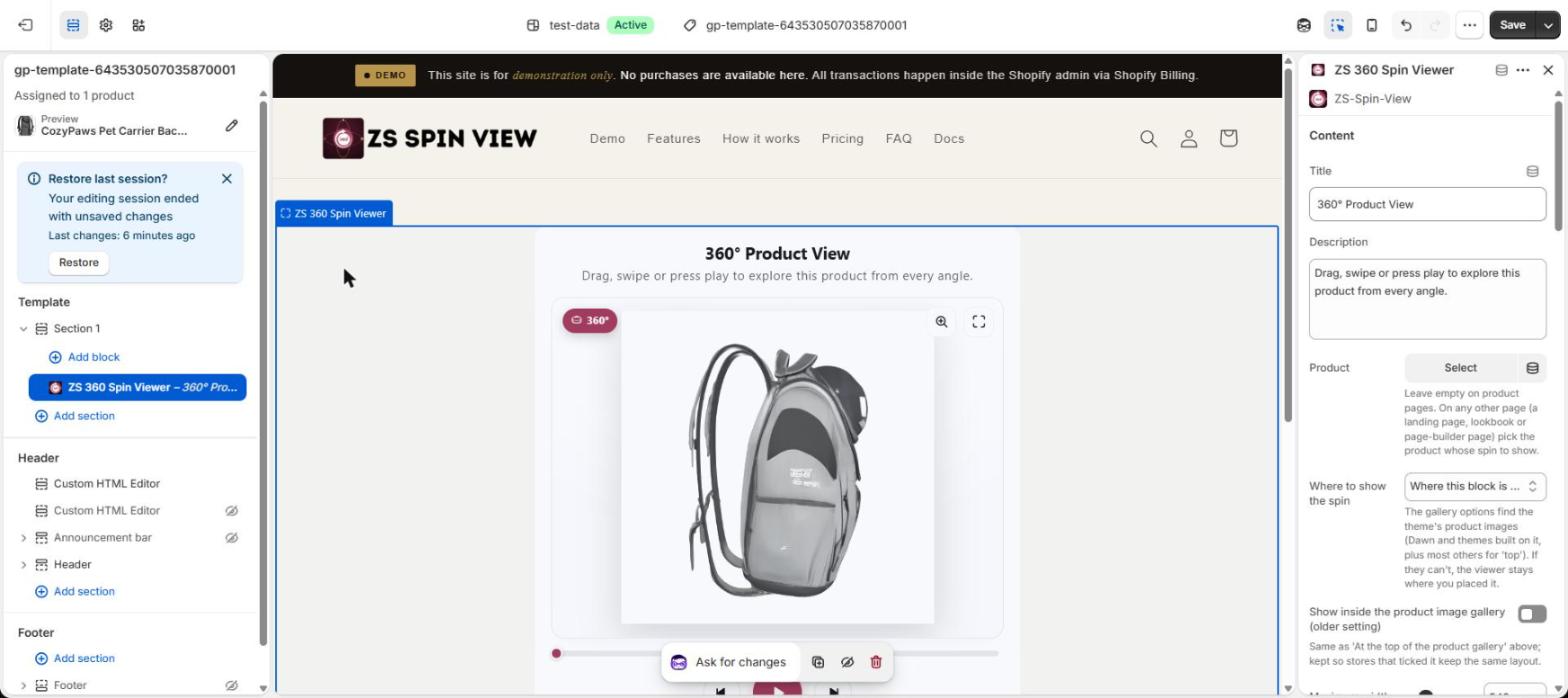
Page builders replace your theme's product template with their own page, so the usual product-page block isn't there. Both PageFly and GemPages have an element that holds Shopify app blocks, and the ZS 360 Spin Viewer block goes inside it. We tested both on our demo store; the screenshots below are from that test.
Before you start
- Install ZS Spin View and make a spin for the product (from photos, a phone video or AI).
- In the app, press Enable now and save the theme editor, so the viewer's app embed is on.
PageFly
- In PageFly open your product page (or create one: Pages → Create blank page → Product).
- In the left bar open Third-party elements → App blocks and drag the App blocks element onto the page where the spin should go.
- Save, then Publish and assign the page to your products. Make sure PageFly's own app embed is switched on in your theme.
- Select the App blocks element and press Go to theme editor.
- In the theme editor, find the PageFly Page section → Add block → Apps → ZS 360 Spin Viewer, then Save.
GemPages
- In GemPages open your product page (or Create new page → Start from scratch → Product Page).
- Open the Shopify Apps panel in the left bar, search for Shopify App (listed under "Integrated with all apps") and drag it onto the page.
- Assign the page to your products and press Publish. If GemPages asks you to turn on its Theme Helper, turn it on.
- Press Open Shopify editor.
- In the theme editor, open the GemPages section → Add block → Apps → ZS 360 Spin Viewer, then Save.
Landing pages and other pages
On a product page the block finds the product's spin by itself. On a landing page, lookbook or any page that isn't a product page, open the block's settings and pick the product under Product; the block then shows that product's spin.
Questions
- Do I need a paid PageFly or GemPages plan?
- No. We added the spin with the free plan of both builders.
- Does the spin keep zoom, hotspots and colour variants inside a page builder?
- Yes. It is the same ZS 360 Spin Viewer block as on a theme product page, with the same settings.
- Does it work with other page builders?
- Builders that can hold Shopify theme app blocks should work the same way. We have tested PageFly and GemPages; if you use another builder, contact us and we'll check it with you.
Try it on your store
Free plan, no credit card. Your first spin can be live in a few minutes.
Install ZS Spin View
Free plan, no credit card. Your first spin can be live in a few minutes.
Install ZS Spin View
More guides: add a 360° view · 3D models & AR · video to spin · PageFly & GemPages · 19 use cases